
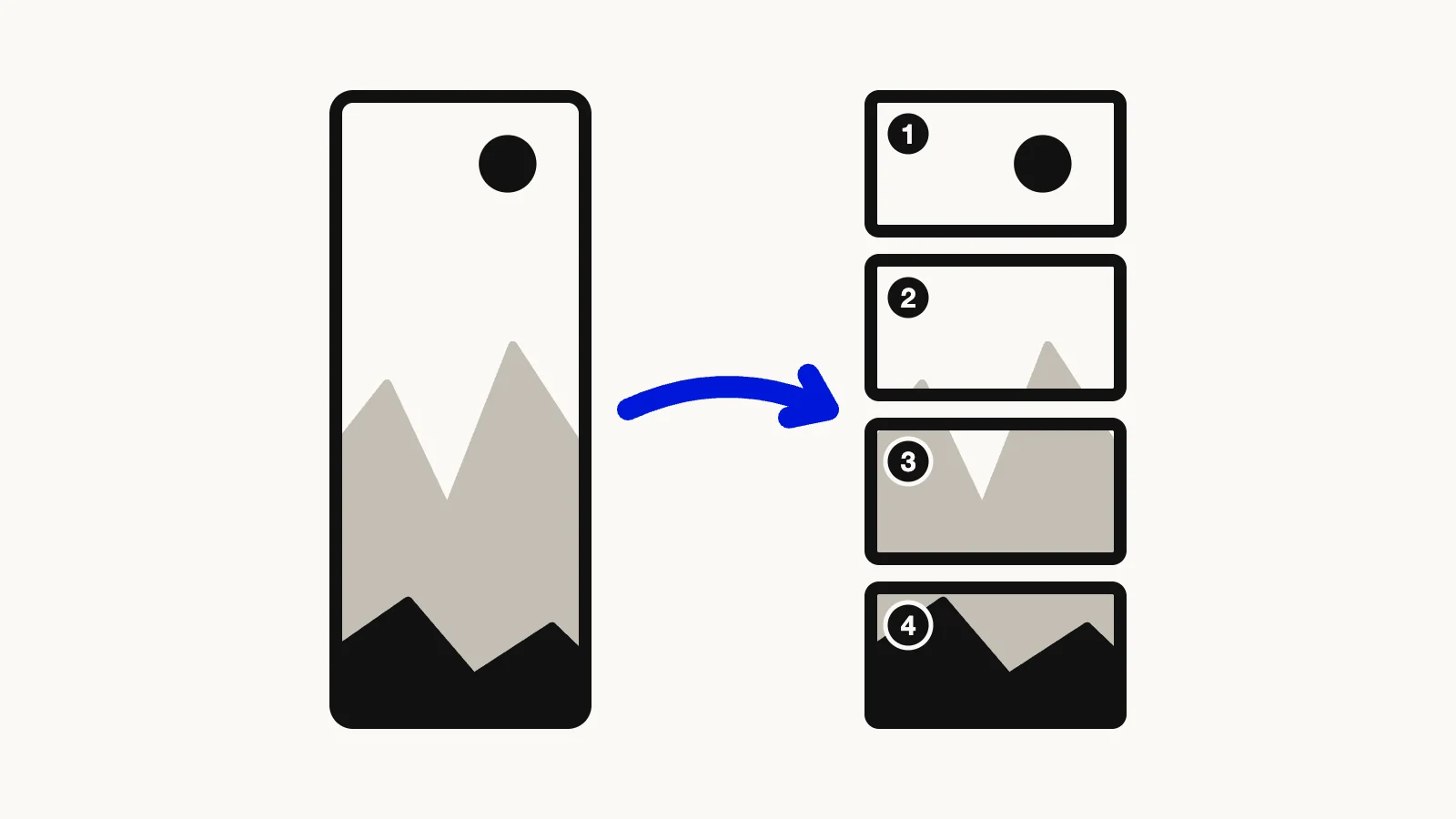

A Twitter 4 image split means cutting one tall picture into four equal pieces and posting them together as the four photos of a single post. The Twitter Image Splitter does the cutting in your browser: you place a crop frame, press Generate, and get four 16:9 PNG files at 1920×1080 pixels, numbered in posting order. This guide covers the sizes, X's limits, and the checks to do before you post.
Quick route
- Want one image cut into four pieces for a single post? Open the Twitter Image Splitter. It starts at 4 pieces, and you can switch to 2, 3 or 5.
- Looking for the Twitter image size? Every piece the tool exports is 1920×1080. The details are in the size section below.
- Wondering how many photos X allows? Up to 4 per post, so a 5-piece split needs its last piece in a reply.
- Need a plain grid such as 3×3? Use the Image Splitter.
What a "Twitter 4 split" actually means
In this guide, a 4 split is one source image divided into four pieces that you upload as the four photos of one post. The pieces are meant to be viewed together, so the picture reads as a single image. The other meaning, four unrelated photos in one post, needs no tool at all.
The splitter stacks the pieces vertically. Imagine four 16:9 screens placed one above the other: together they form a tall image whose proportions are 16:36, or 4:9. You move and resize a crop frame of that shape over your photo, and the tool slices whatever is inside the frame into four equal horizontal strips.
A tall source image works best. A phone screenshot, a vertical illustration or a long infographic fits the 4:9 shape without much wasted space.
Twitter image size: what the tool exports
Whatever number of pieces you choose, each piece is resized to 1920×1080 pixels (16:9) and saved as a PNG named twitter_post_1.png, twitter_post_2.png and so on. What changes with the piece count is the shape of the crop frame and the total size of the stacked picture:
- 2 pieces: the crop frame is 16:18 (8:9), and the stacked result is 1920×2160 pixels.
- 3 pieces: the frame is 16:27, and the stacked result is 1920×3240 pixels.
- 4 pieces: the frame is 16:36 (4:9), and the stacked result is 1920×4320 pixels.
- 5 pieces: the frame is 16:45, and the stacked result is 1920×5400 pixels.
The rule is the same each time: the frame is 16 wide and 9 times the piece count tall.
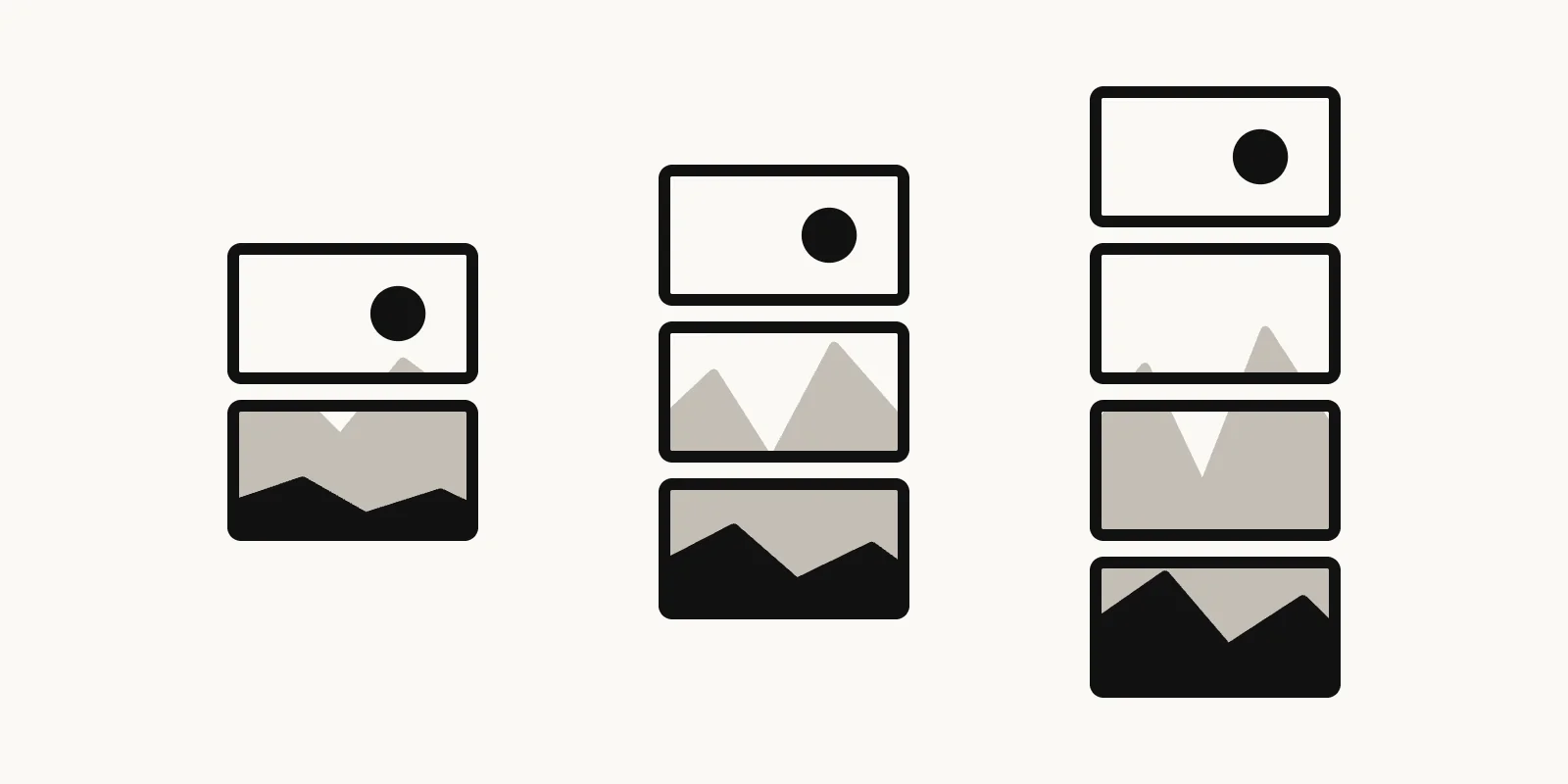
Illustration of 2, 3 and 4 stacked 16:9 strips showing how one tall image is divided into equal pieces.
A note on sharpness: the tool resizes each strip to exactly 1920×1080. If the area inside your frame is smaller than that, the pieces are enlarged and can look soft. For a full-quality 4 split, the area inside the frame should be about 1920 pixels wide and 4320 pixels tall, or larger.
The upload accepts JPG, PNG, WebP, AVIF, GIF, BMP, HEIC and JFIF files up to 50 MB. If you drop several files at once, only the first image is used. Everything runs in your browser, and the file is not uploaded to a server.
Why 16:9?
Every piece uses the same 16:9 shape, which keeps the stack's proportions predictable. It also falls inside the range X calls standard. The X Help Center says that when you post a single photo, images with aspect ratios between 2:1 and 3:4 display in full (X Help Center, "How to post photos or GIFs on X"). 16:9 is about 1.78:1, so it sits inside that range.
That statement describes a single photo. X does not publish the exact crop rules for posts with 2, 3 or 4 photos, so don't assume the four pieces will line up as one seamless picture in the feed. The reliable check is the composer preview, covered below.
How many photos can one X post hold?
X's Help Center states that you can include up to four media items in a post: photos, a GIF or a video, up to 4 in total (X Help Center, "How to Post"). The Korean and Japanese versions of that page say the same (Korean, Japanese).
In practice:
- A 2, 3 or 4 split fits in one post. Don't add a GIF or a video, because every media item counts toward the same four.
- A 5-piece split does not fit. The fifth image has to go elsewhere, for example in a reply to your own post. If the picture only works as a complete set, choose 4 pieces instead.
How to split an image for Twitter, step by step
- Open the Twitter Image Splitter and choose a picture with Select Files, or drag it onto the page. The editor opens with a crop frame set to 4 pieces.
- Under Posts, press 2, 3, 4 or 5 if you want a different count. The frame changes shape right away, and thin lines inside it mark where the cuts will fall.
- Move the frame by dragging it, and resize it by dragging the handles on its edges and corners. The View Scale slider zooms the frame in and out from 1x to 5x. With the frame focused, the arrow keys nudge it as well.
- Press Generate. The pieces appear on a results screen.
- Press Download ZIP for all the files in one archive, or Download all to save them one after another. Clicking a single piece downloads just that one. If you picked the wrong picture, Change Image takes you back to the upload page.
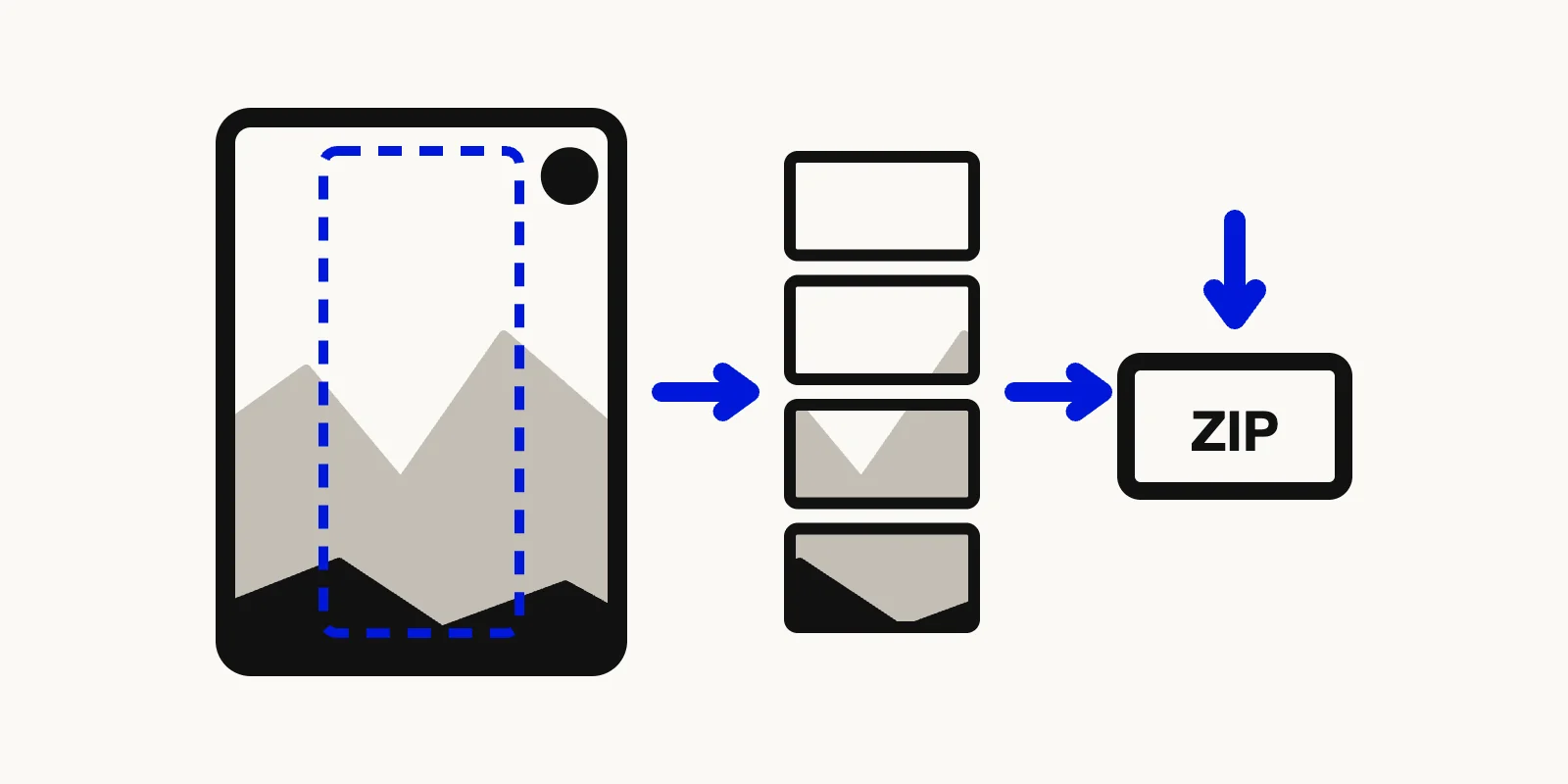
Illustration of a crop frame over a tall photo, the four resulting strips, and a ZIP download at the end.
To re-adjust after generating, use Back to edit on the results screen.
Post the pieces in order, then check the preview
The files are numbered twitter_post_1.png to twitter_post_4.png. Attach them in that order, 1 first. In the X composer, once two or more photos are selected, the Help Center says you can tap and hold a photo and drag it to reorder before posting (X Help Center, "How to post photos or GIFs on X"). That is handy if you added them in the wrong order.
Before you post, check the composer preview:
- Are the pieces in the right order?
- Are faces and text still fully visible, or has X trimmed the edges of a piece?
- Does each photo still make sense when someone opens it on its own?
Because X does not document how it crops multi-photo posts, the preview is the only trustworthy answer. If edges get trimmed, go back to the splitter and keep text away from the borders of each strip.
Check the file format and size before uploading
X accepts GIF, JPEG and PNG files, and photos can be up to 5 MB each (X Help Center, "How to post photos or GIFs on X", in the section on size and file type requirements). It does not accept BMP, TIFF or other formats.
The splitter saves PNG only. A 1920×1080 PNG of an illustration is usually small, but a detailed photo can exceed 5 MB. If a piece is too big, run it through the PNG to JPG converter first. For picture sizes on other networks, see Social Media Image Optimization. For the basics of cutting images, read the complete guide to image splitting.
FAQ: splitting images for Twitter
What size should each piece be for a 2, 3 or 4 split?
Each piece is 1920×1080 pixels, in a 16:9 ratio, no matter how many pieces you choose. A 2 split uses a 16:18 crop frame, a 3 split uses 16:27 and a 4 split uses 16:36. The frame is always 16 wide and 9 times the piece count tall, so the strips cut from it come out 16:9.
Can I post five pieces in one post?
No. X allows up to 4 media items per post, according to its Help Center. Choose 4 pieces if you want everything in one post. If you need 5, post the first four together and put the fifth in a reply to the same post.
Will the four pieces look like one picture in the timeline?
Not necessarily. X does not publish the crop and layout rules for posts with several photos, so the result in the feed can differ from the stacked picture you see in the tool. Open the composer preview before posting and adjust the crop frame if edges or text get trimmed.
Split your image for Twitter now
Pick a tall picture, choose how many pieces you need and download them in order. The Twitter Image Splitter is free, needs no sign-up and keeps your file in the browser.