
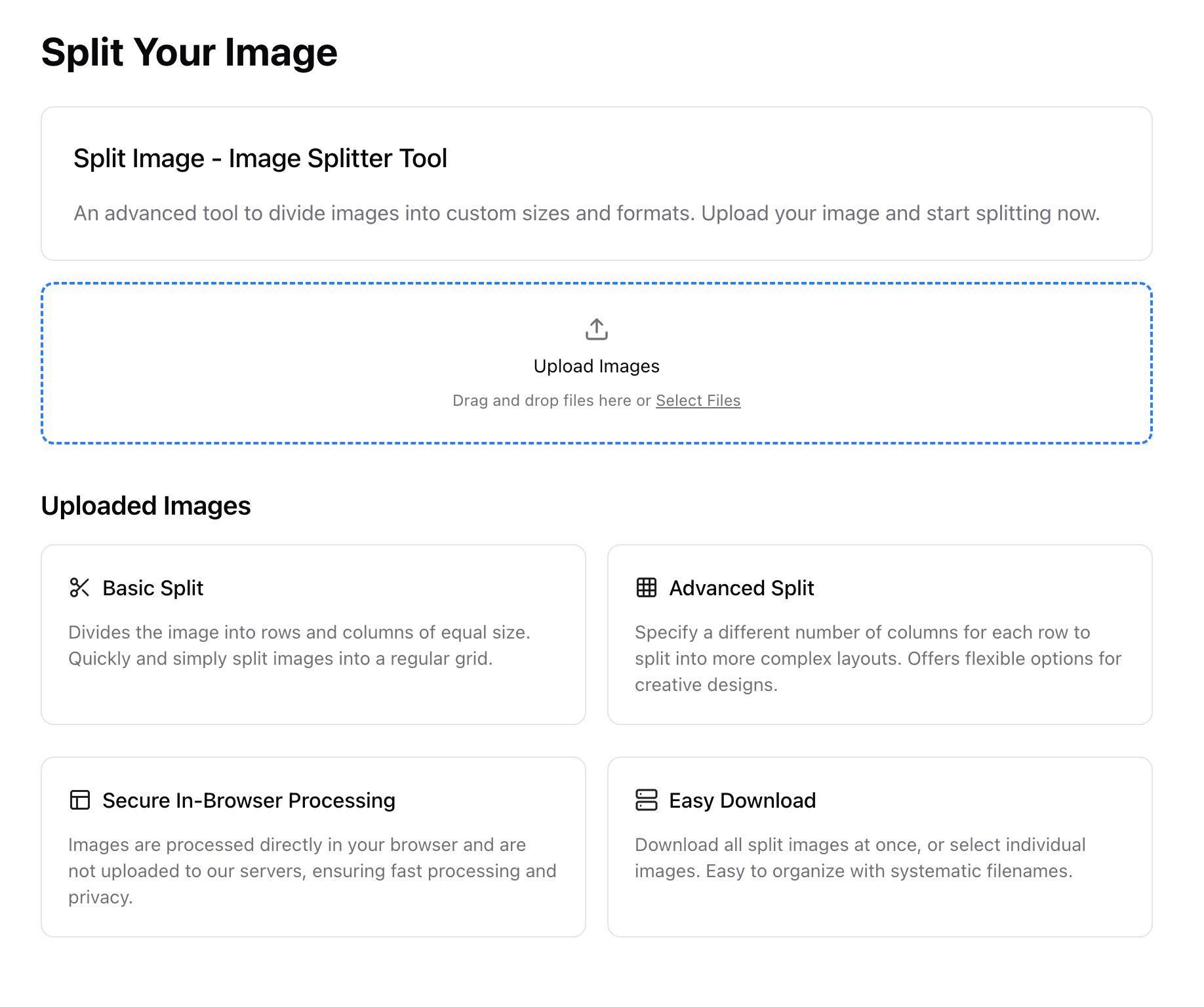

Image splitting has become an essential workflow for digital marketers, social media managers, and designers who need clean exports fast. The Image Splitter handles 2, 3, or 4-part layouts, Instagram grids, seamless carousels, and custom tiles while keeping your layout consistent.
Start here if you need a general-purpose Online Image Splitter. If your goal is specifically an Instagram Grid Maker, Instagram Carousel Splitter, or Twitter Image Splitter, jump to those dedicated workflows instead of forcing one layout to do everything.
Quick route to the right splitter
- Use the Online Image Splitter for 2-way, 3-way, 4-way, or custom grids.
- Use the Instagram Grid Maker for 3x3, 3x4, or 5x3 puzzle feeds.
- Use the Instagram Carousel Splitter for wide images and seamless swipe slides.
- Use the Twitter Image Splitter for long-image threads and 4-panel X posts.
What is Image Splitting?
Image splitting is the process of dividing a single image into multiple smaller pieces while maintaining visual continuity. With free online image splitters, you can easily create professional-looking image grids without any software installation. This technique is commonly used for:
- Social Media Grids: Creating cohesive Instagram feeds with multi-post layouts
- Web Performance: Reducing file sizes for faster loading times
- Print Design: Preparing large images for tiled printing
- E-commerce: Displaying product details across multiple image sections
Why Split Images?
1. Enhanced Social Media Engagement
Multi-post grids on Instagram can increase engagement rates by up to 3.5x compared to single posts. When users see connected images in their feed, they're more likely to interact with your content.
2. Improved Website Performance
Smaller image files load faster, reducing bounce rates and improving SEO rankings. Google's Core Web Vitals consider loading speed as a ranking factor.
3. Better Mobile Experience
Split images allow for responsive design optimization, ensuring your content looks great on all screen sizes.
Popular Image Splitting Techniques
Grid Method
The most common approach involves dividing images into equal rectangular sections:
- 3x3 Grid: Perfect for Instagram puzzle feeds
- 2x2 Grid: Ideal for product showcase layouts
- Custom Grids: Flexible layouts for unique design needs
Aspect Ratio Preservation
Maintaining proper aspect ratios ensures your split images display correctly across different platforms:
- Instagram feed posts: 4:5 for individual tiles, with center-safe composition
- Instagram profile grids: 3-column layouts for puzzle feeds
- Facebook: 1.91:1 for cover photos
- X / Twitter: 16:9 style exports for thread panels
Quality Optimization
When splitting images, consider:
- File Format: PNG for graphics, JPEG for photos
- Compression: Balance between file size and visual quality
- Resolution: Match your target platform's requirements
Best Tools for Image Splitting
Free Online Image Splitters
Modern web-based tools offer convenience and accessibility:
- No software installation required
- Cross-platform compatibility
- Real-time preview capabilities
- Direct sharing options
- Browser-based processing keeps source images on your device
For most workflows, a dedicated Online Image Splitter is the fastest place to start. From there, you can branch into the Instagram Grid Maker, Instagram Carousel Splitter, or Twitter Image Splitter when the publishing format is fixed.
Professional Software
For advanced users:
- Adobe Photoshop: Industry standard with precise control
- GIMP: Free alternative with similar capabilities
- Canva: User-friendly with templates
Mobile Apps
On-the-go solutions:
- Built-in editing tools
- Social media integration
- Cloud synchronization
Step-by-Step Guide: Creating Instagram Grid Posts
Planning Your Grid
- Choose Your Layout: Decide on grid size (3x3, 3x1, etc.)
- Select Your Image: High-resolution images work best
- Consider Your Message: Ensure text remains readable after splitting
Splitting Process with Free Online Tools
- Upload Your Image: Open the Online Image Splitter and choose a source image
- Set Grid Parameters: Choose Uniform Grid or Freeform, then set rows and columns (up to 7)
- Adjust Positioning: Fine-tune divider positions, guide color, and view scale
- Preview Results: Check each slice in the workspace before generating an export
- Download Files: Save PNG tiles individually or download them together as a ZIP; there's no sign-up and no account required
If you are publishing to Instagram, use the Instagram Grid Maker instead of a generic splitter so your tile size and posting order stay aligned. If you need swipe continuity, move to the Instagram Carousel Splitter.
Publishing Strategy
- Upload Order: Start from top-left, move right then down
- Timing: Post pieces within 10-15 minutes of each other
- Captions: Create engaging captions for each piece
- Hashtags: Use relevant tags to increase discoverability
Common Mistakes to Avoid
1. Ignoring Platform Requirements
Each social media platform has specific image requirements. Research these before splitting your images.
2. Poor Quality Source Images
Low-resolution images become pixelated when split. Always start with high-quality originals.
3. Inappropriate Split Lines
Avoid cutting through important text or faces. Plan your splits carefully.
4. Inconsistent Aspect Ratios
Maintain consistency across all pieces for professional appearance.
Advanced Techniques
Panoramic Splits
Create stunning landscape layouts:
- Use horizontal splits for scenic images
- Maintain color consistency across pieces
- Consider overlapping elements for seamless transitions
Text Integration
Incorporate text across multiple images:
- Plan text placement before splitting
- Use consistent fonts and colors
- Ensure readability on mobile devices
Brand Consistency
Maintain your brand identity:
- Use consistent color schemes
- Apply brand filters uniformly
- Include logos strategically
Measuring Success
Track the performance of your split images:
- Engagement Rate: Likes, comments, shares per post
- Reach: How many people saw your content
- Click-through Rate: For posts with call-to-actions
- Save Rate: Indicates valuable content
Future of Image Splitting
Emerging trends include:
- AI-Powered Splitting: Automated optimal split point detection
- Interactive Grids: Clickable elements within split images
- Video Integration: Combining static splits with video content
- AR/VR Applications: Split images for immersive experiences
Conclusion
Image splitting is more than just a technical process—it's a creative tool that can transform your digital marketing strategy. Whether you're a social media manager, web designer, or content creator, mastering image splitting techniques with free online tools will help you create more engaging, professional, and effective visual content.
Start with simple grid layouts using a free image splitter and gradually experiment with more complex designs. Remember to always consider your audience, platform requirements, and overall brand strategy when splitting images online.
Key Takeaways:
- Use free online image splitters for quick, professional results
- No software installation required - split images directly in your browser
- Perfect for creating Instagram grids, social media content, and web layouts
- Always preview your split images before downloading
- Consider your target platform's requirements for optimal results
FAQ: choosing the right image splitter
Can I split images online into 2, 3, or 4 parts?
Yes. The Online Image Splitter is the best fit when you need simple 2-way, 3-way, 4-way, or custom grid exports.
Which tool should I use for Instagram?
Use the Instagram Grid Maker for puzzle feeds and the Instagram Carousel Splitter for seamless swipe posts.
What if I need long-image panels for X or Twitter?
Use the Twitter Image Splitter to cut one long visual into numbered thread-ready panels.
Start splitting with the right workflow
Open the Online Image Splitter for general layouts, then branch into the Instagram Grid Maker, Instagram Carousel Splitter, or Twitter Image Splitter when the publishing format is already clear.