
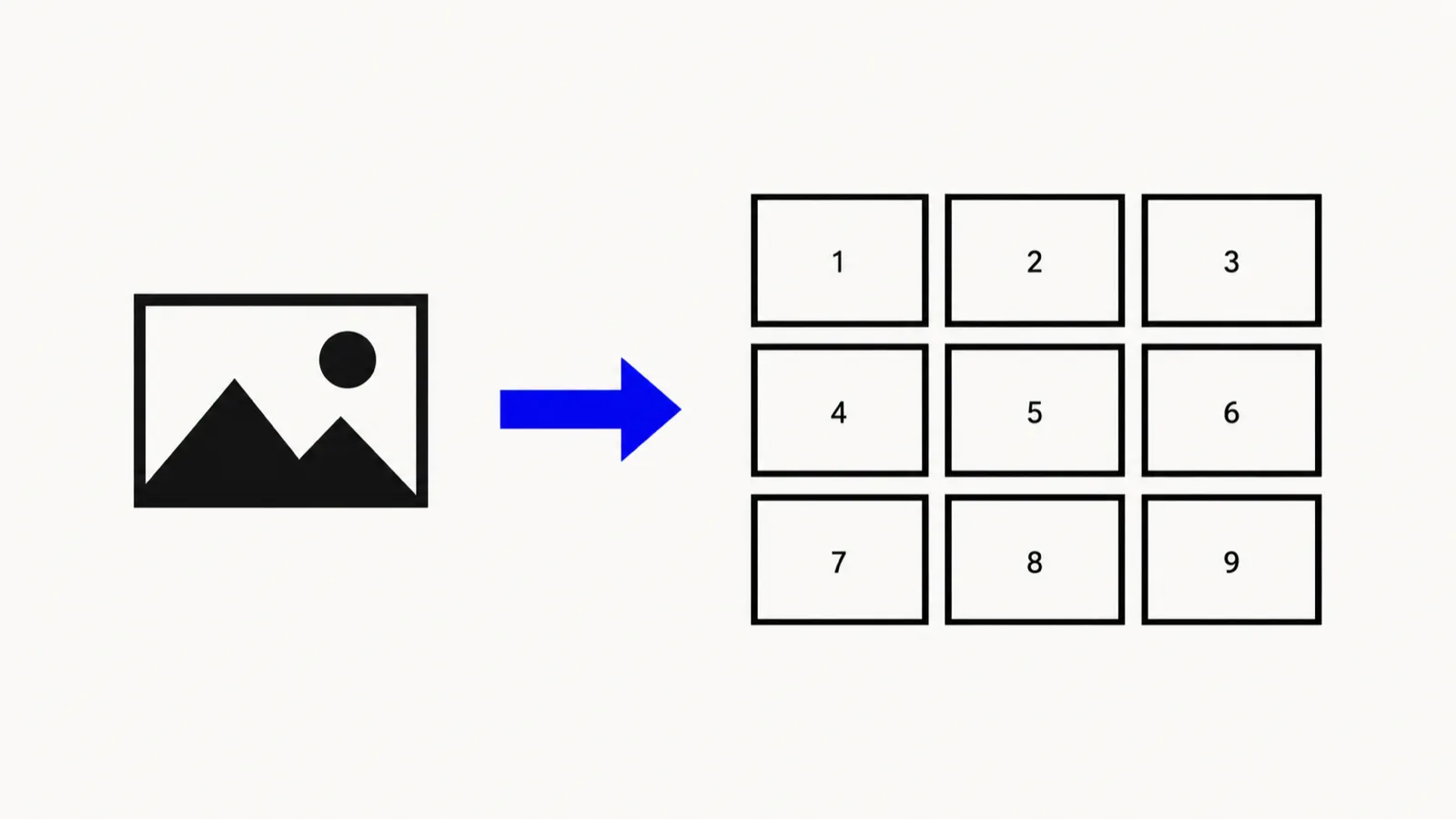

If you searched for the "My Social Boutique grid maker" (or typed something close, like "my social bouquet split"), you were probably trying to slice one photo into a 3-column Instagram grid, not necessarily looking for that one brand by name. The Instagram Grid Maker does exactly that for free in your browser, with no Canva account and no sign-up. This post is not affiliated with My Social Boutique in any way — we're just clarifying what that name actually refers to, so you don't go looking for a feature that doesn't exist the way you might expect.
Quick route
- Use the Instagram Grid Maker for a classic 3-column puzzle feed, 1 to 5 rows.
- Use the Instagram Carousel Splitter for a wide image split into 2–6 swipeable slides instead of a profile grid.
- Use the Image Splitter for a fully custom layout — any number of columns, up to 7 rows.
What "My Social Boutique" actually is, as of October 2026
Checking directly, the most obvious domain for this name — mysocialboutique.com — is a parked domain listed for sale, not an active product site, as of October 2026. The brand's real, active site is at a different address, and it describes itself as "The Canva Template Membership", offering "2,000+ Canva Templates designed for Small Businesses, Online Entrepreneurs and Experts in the Membership," including template sets referencing an Instagram grid layout (retrieved directly from the site, October 2026).
That's a meaningfully different product from a standalone "grid maker" tool. According to the brand's own site, it's a subscription to a library of Canva template files — meaning you still need a Canva account, you open the template inside Canva's own editor, and you manually drop your own photos into the template's pre-built slots before exporting each tile yourself. It isn't a web app that automatically slices one uploaded photo into correctly sized, correctly ordered grid tiles for you.
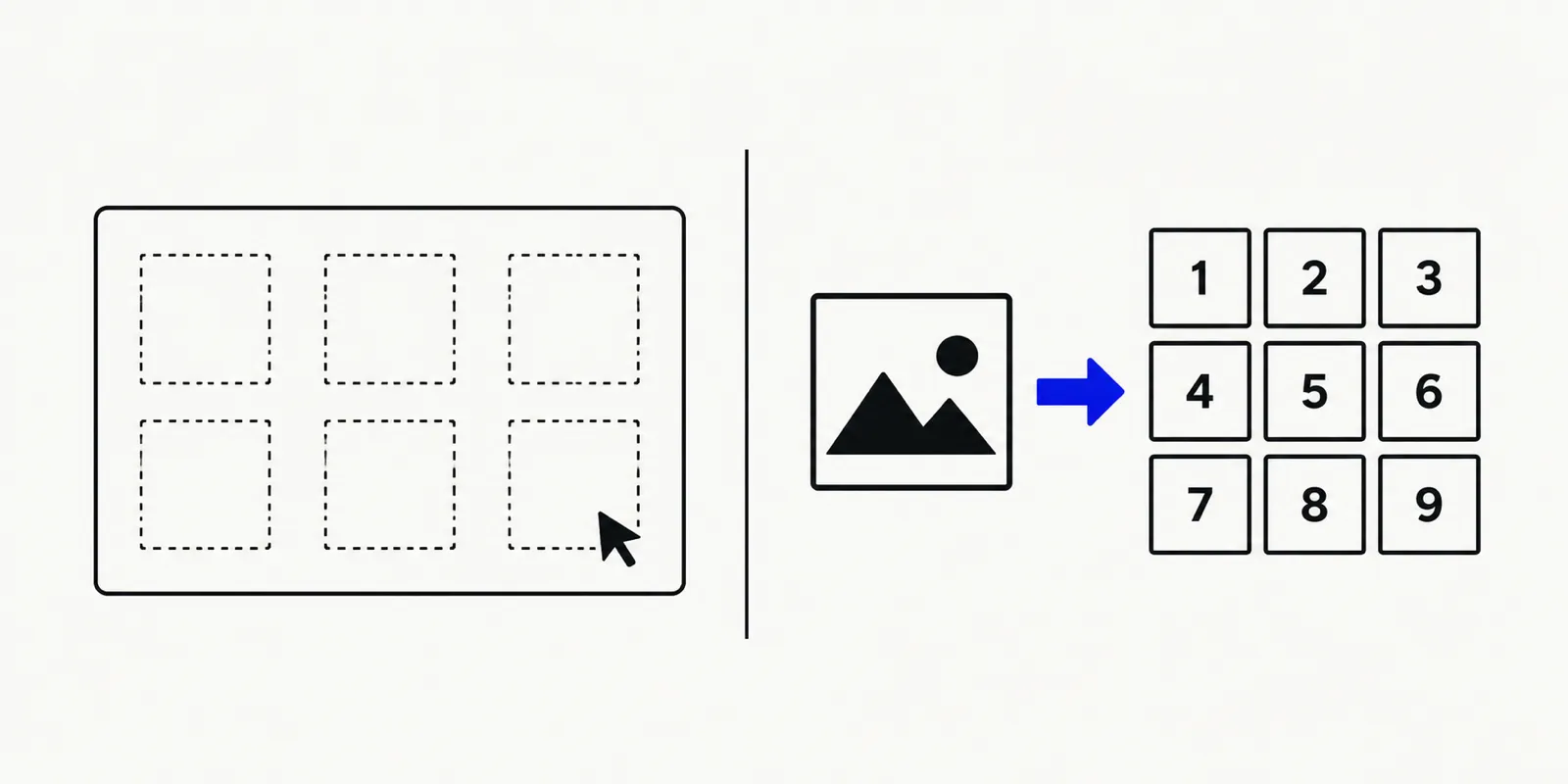
Illustration contrasting a Canva template file with empty photo slots against a direct grid-splitting web tool that outputs numbered tiles automatically.
Template-based grid tools vs. a direct grid splitter
This distinction matters for anyone who just wants tiles, fast:
- A Canva template membership gives you a design file with placeholder slots. You need your own Canva login, you place and crop each photo into its slot by hand, and you export each tile separately (and the export quality or format options depend on your Canva plan).
- A dedicated grid splitter takes one photo you already have, automatically divides it into the right number of correctly sized tiles in the right order, and hands you the files immediately — no design software, no manual placement, no separate account.
If what you actually want is "take this one photo and turn it into 9 Instagram tiles," the second approach gets you there in far fewer steps.
There's also a cost difference worth knowing about upfront. A template membership charges ongoing access to its library, on top of whatever Canva plan tier its templates assume you already have. A dedicated grid splitter that runs entirely in the browser skips that subscription step altogether — the tool itself is free to use and supported by ads rather than a membership fee, which matters if the only thing you actually need is the slicing, not a library of pre-designed templates to drop photos into by hand.
It's also worth noting that search variants like "my social bouquet split" likely aren't pointing to a different product at all — they read as a mishearing or misremembering of the same brand name, since "boutique" and "bouquet" sound close enough to blur together when you're trying to recall a name you saw once on social media rather than typed in yourself. Either way, the underlying need is the same: tiles sized and ordered correctly for an Instagram profile grid.
How the Instagram Grid Maker works
- Open the Instagram Grid Maker and upload your source image.
- Zoom and pan to choose exactly which part of the image becomes the grid — the original size doesn't matter.
- Set the number of rows (1 to 5); the grid always keeps 3 columns, matching an Instagram profile layout.
- Generate the grid. Each tile exports at 1080×1350 and is numbered left to right, top to bottom.
- Download tiles individually, all at once, or as a ZIP. Since profiles display newest-first, upload the highest-numbered tile first and the lowest-numbered tile last to get the image to read correctly.
No Canva account, no template file, and no sign-up — the whole thing runs in your browser.
The posting-order step trips people up more than anything else. Instagram profiles display newest post first, so if tile 1 is meant to appear at the top-left of your finished grid, it actually needs to be the last tile you post, not the first. Upload the highest-numbered tile to your profile first and work backward to tile 1, and the grid will assemble itself correctly as you go — upload them in numeric order instead and the finished puzzle will read backward.
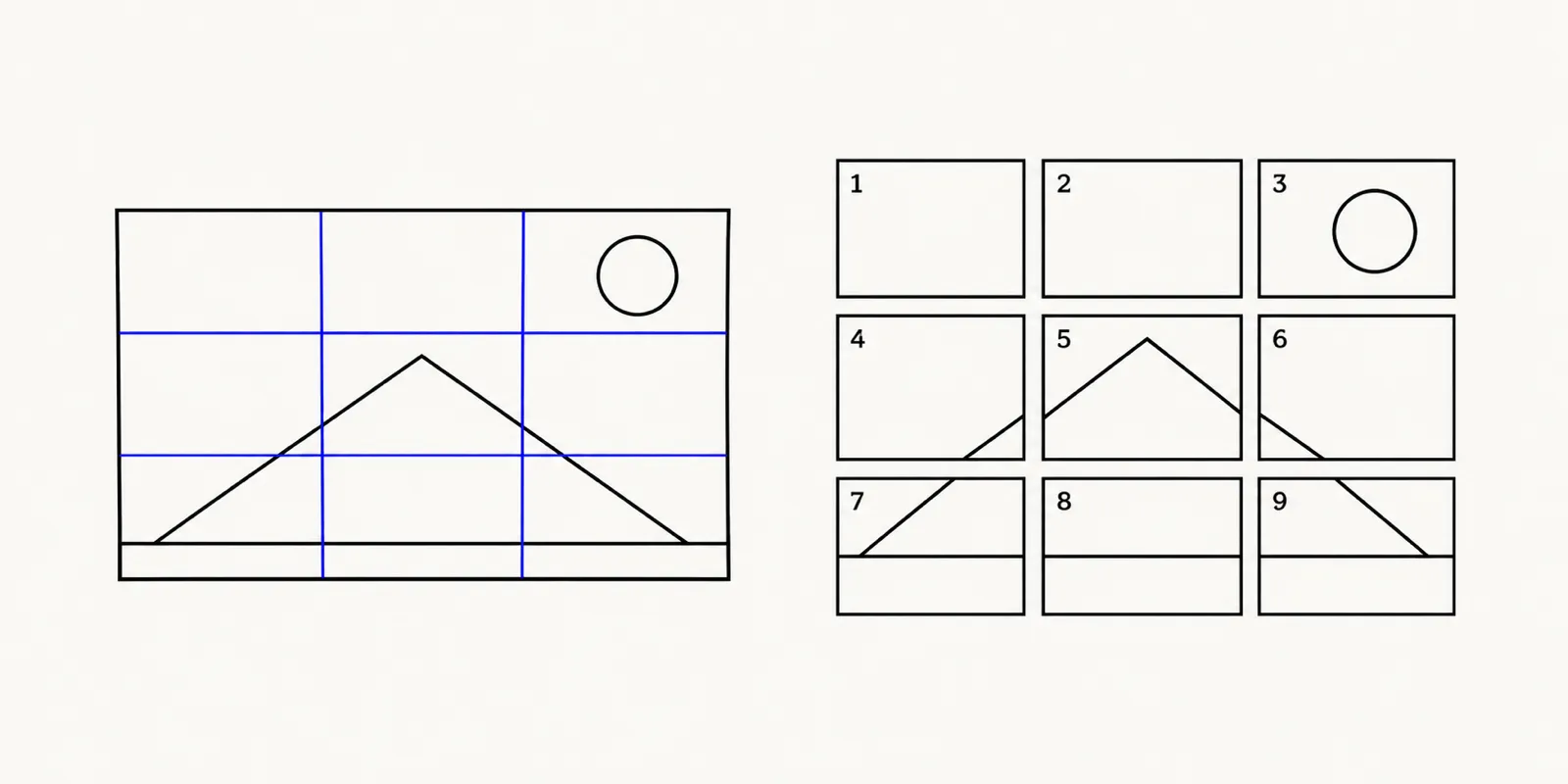
Illustration of one photo being automatically sliced into a 3-column grid of nine numbered Instagram tiles.
Want swipe slides instead of a grid?
A profile grid and a carousel post solve different problems. Instagram's own help documentation confirms a single post can carry multiple photos that a viewer swipes through (Instagram Help Center, "Share a post with multiple photos or videos on Instagram"). If you're not trying to build a cohesive 3x3 (or 3x4, or 3x5) profile layout, and you actually want one wide image broken into slides someone swipes through in a single post, use the Instagram Carousel Splitter instead. It splits a wide image into 2 to 6 seamless slides, each sized at 1080×1350.
Need something fully custom?
Neither a 3-column grid nor a carousel fits every layout. If you need an arbitrary number of columns, or more than 5 rows, the general-purpose Image Splitter supports up to 7 rows with a custom column count, exporting PNG tiles individually or as a ZIP — useful for layouts that don't map cleanly onto a standard Instagram grid at all, like a banner meant to span several posts in a row rather than stack as a square feed.
FAQ: My Social Boutique grid maker and alternatives
Is "My Social Boutique" a free grid-making tool?
Based on what the brand's own site shows as of October 2026, it operates as a paid Canva template membership rather than a free standalone tool, and using its templates requires a Canva account. If you want a free way to turn one photo into Instagram grid tiles with no account at all, the Instagram Grid Maker is the more direct route.
What size should each Instagram grid tile be?
Each tile should be 1080×1350 pixels — a portrait 4:5 frame that fits within the up-to-1080-pixel-wide display Instagram's own help documentation describes for feed photos (Instagram Help Center, "Image resolution of photos you share on Instagram"). The Instagram Grid Maker exports every tile at that exact size automatically.
Do I need Canva to make an Instagram grid?
Not with aimagetools. The Instagram Grid Maker works directly on a photo you upload and generates the tiles itself — there's no template to buy, no design software to open, and no account required.
Build your grid now
If "grid maker" is the part you actually care about, skip the template search and go straight to a tool that does the slicing for you. Open the Instagram Grid Maker for a 3-column puzzle feed, or the Instagram Carousel Splitter if swipeable slides fit your post better. Both are free, run in your browser, and never ask for an account.