

If an iPhone photo shows up as a mysterious blank icon the moment you try to upload it to a form, a marketplace, or an old piece of software, that's almost always a .HEIC file. HEIC is Apple's modern photo format, and it doesn't open everywhere yet. The HEIC to JPG Converter fixes that in your browser — drop in the file, choose JPG, and download a copy that almost anything can open. No sign-up, and the photo never leaves your device.
Quick route
- Use the HEIC to JPG Converter when you need a file that opens anywhere: forms, marketplaces, printers, older software.
- Use the HEIC to PNG Converter if you'd rather keep a lossless copy, or the image has transparency you want to preserve.
- Both accept up to 20 files per batch, 50 MB each, and let you download results one at a time or together as a ZIP.
Why iPhone photos save as HEIC in the first place
Apple's Camera app has saved photos in the HEIF/HEIC format by default since iOS 11, and Apple documents the format and the toggle to change it on its own support site (Using HEIF or HEVC media on Apple devices, Apple Support). HEIC photos store the same picture in less space than an equivalent JPEG, which matters when a camera roll is pushing against iCloud storage limits.
You can see and change the setting yourself: open Settings, tap Camera, tap Formats, then choose Most Compatible instead of High Efficiency. According to Apple's own instructions, this only changes new photos and videos going forward — anything already sitting in your camera roll stays in whatever format it was captured in. That's exactly why a converter is useful even after you flip the setting: it handles the backlog of HEIC photos you already have.
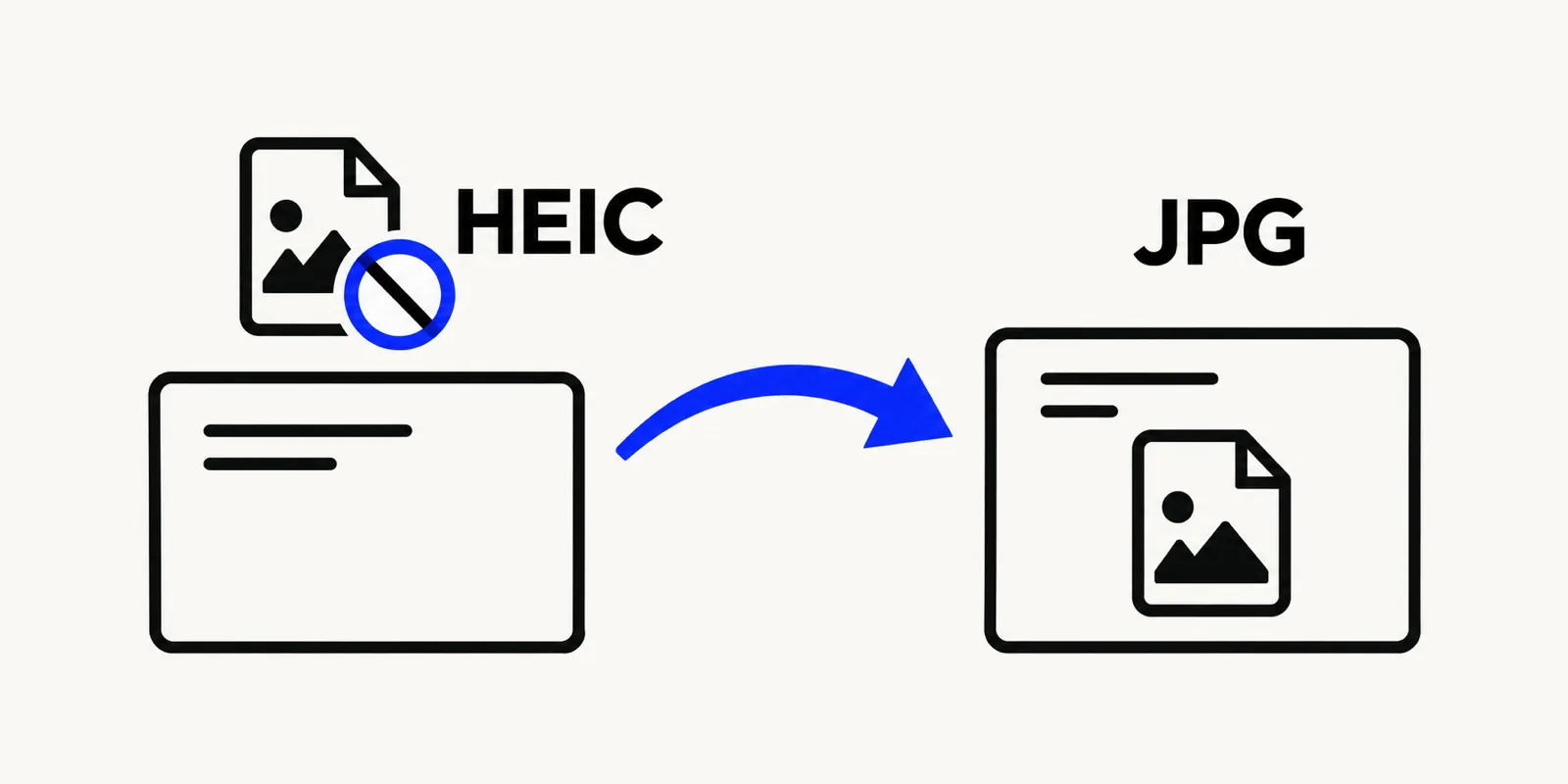
Illustration of an iPhone HEIC photo icon blocked from opening on a desktop upload form, with an arrow pointing toward a JPG file instead.
Why HEIC files won't open everywhere
HEIC photos are compressed with HEVC, the same codec used for high-efficiency video, and not every operating system or web app decodes HEVC by default. On Windows, Microsoft ships HEIC/HEIF support as a separate add-on called HEIF Image Extensions, which in turn needs the matching HEVC Video Extensions installed to actually read or write .heic files, and it requires a reasonably current Windows 10 or 11 build (HEIF Image Extensions, Microsoft Store, retrieved October 2026). Plenty of older Android phones, some web uploaders, point-of-sale systems, and photo printing kiosks never added that support at all, so they simply reject the file or show a broken-image icon.
None of this is a bug in your photo — it's a licensing and codec-support gap between Apple's format choice and the rest of the software world. Converting once to JPG sidesteps the whole problem instead of asking every recipient to install something.
Renaming the file won't help, either. Unlike a couple of format pairs that are nearly the same container under a different extension, HEIC and JPEG use completely different compression schemes — HEIC is built on HEVC, JPEG on its own much older codec — so swapping .heic for .jpg leaves the underlying bytes exactly as unreadable as before to any app that doesn't already support HEIC. A real converter has to decode the HEVC-compressed image and re-encode it as an actual JPEG, which is exactly what happens when you run a file through the HEIC to JPG Converter.
How to convert HEIC to JPG online, step by step
- Open the HEIC to JPG Converter and drop in one photo, or select up to 20 at once.
- Confirm JPG as the output format. If a photo happens to have transparent pixels (rare for camera photos, more common for edited or screenshotted HEIF images), JPG fills that area with white, since JPG has no transparency channel.
- Drag the quality slider — it runs from 10 to 100 — toward the top end if you want the closest match to the original; lower it if file size matters more than that last bit of sharpness.
- Download each converted JPG individually, or grab the whole batch as one ZIP.
Everything happens inside your browser tab. Nothing uploads to a server, there's no account to create, and the tool is free to use, supported by ads.
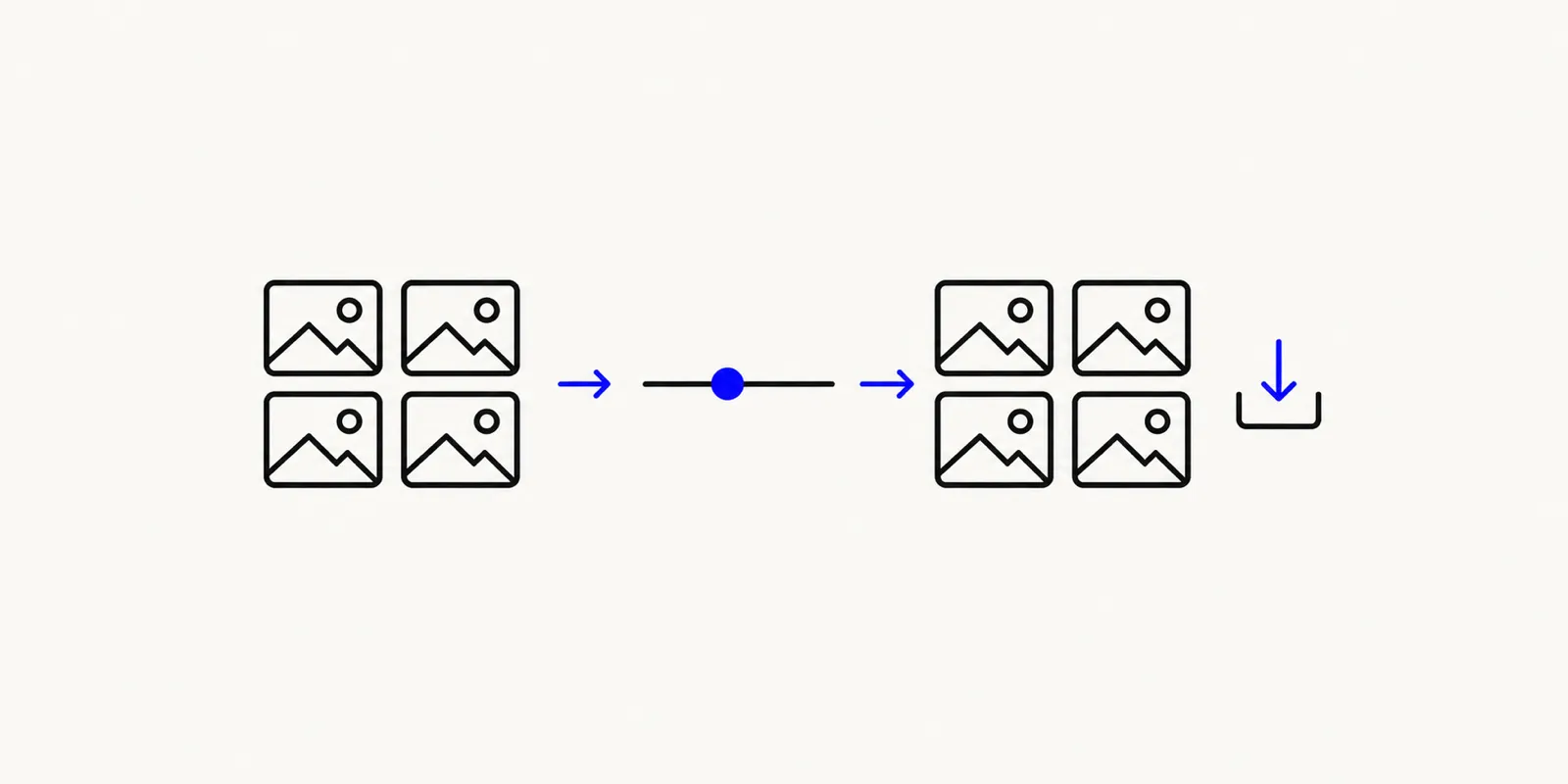
Illustration of a batch of HEIC photo thumbnails being converted into JPG files with a quality slider and a download-all button.
Converting a whole camera roll at once
If you're clearing out iCloud storage or handing photos off to someone on a different platform, you're rarely dealing with just one file. Export a batch from the Photos app — AirDrop, the Files app, or a cable all work — and you'll usually end up with a folder full of .HEIC files. Drop as many as 20 of them into the converter in one go, each up to 50 MB, and download the whole batch as a single ZIP instead of exporting and converting one photo at a time. For a camera roll larger than 20 photos, just repeat the batch a few times.
HEIC to JPG or HEIC to PNG?
JPG is the right default for ordinary photos: it's the most universally compatible format, it produces smaller files than PNG for photographic detail, and almost every upload form, printer, and piece of software on earth accepts it. Choose JPG whenever the destination just needs "a normal photo file."
PNG makes more sense in a couple of specific cases. If the HEIC file actually contains transparency — some edited images and screenshots saved in HEIF do — converting to PNG preserves that alpha channel instead of flattening it to a solid background. PNG is also the better choice if you plan to edit the image further and want to avoid adding another layer of lossy compression on top of what the camera already applied. The tradeoff is file size: a PNG from a detailed photo will usually be noticeably larger than the equivalent JPG, since PNG can't compress photographic detail as efficiently as a format designed for it.
Most ordinary camera photos don't have any transparency to lose, so for the typical "my phone saved this as HEIC and I need a normal photo" situation, JPG remains the simpler and smaller choice — a pattern that holds across most lossy-versus-lossless format decisions, not just this one (MDN, "Image file type and format guide").
FAQ: converting HEIC to JPG
Does converting HEIC to JPG reduce quality?
Converting re-encodes the image, so there is some generation loss, but at a high quality setting the difference is not visually noticeable for most photos. Use the HEIC to JPG Converter with the quality slider set near the top of its 10–100 range to keep that loss minimal.
Why won't my HEIC photos open on Windows or on a website?
Because HEIC relies on HEVC compression, which Windows and many web apps don't decode out of the box. Windows needs Microsoft's own HEIF Image Extensions add-on, plus a matching HEVC extension, installed before it can open .heic files at all. Converting to JPG once with the HEIC to JPG Converter avoids installing anything on either end.
Is there a free way to convert HEIC to JPG without creating an account?
Yes. The HEIC to JPG Converter runs entirely in your browser, is free and supported by ads, and never asks you to sign up or upload your photos to a server.
Convert your iPhone photos now
Whether it's one photo for a form or a whole camera roll you're exporting before a phone upgrade, the fastest fix is converting once instead of asking every recipient to install new software. Open the HEIC to JPG Converter for the most compatible result, or use HEIC to PNG when you need to keep transparency or avoid extra compression.