

Canva's own resize feature is built to reformat a Canva design — not a folder of plain photo files — and as of October 2026 it's gated behind a paid plan. If what you actually need is to resize a batch of photos or graphics you already have, the Image Resizer does that for free, with no account, directly in your browser. This guide is not affiliated with Canva; it's here to clarify what Canva's tool covers before you go looking for a workaround that doesn't exist.
Quick route
- Use the Image Resizer to bulk-resize photo or graphic files by exact pixels or percentage, free, with no Canva account.
- Use the Image Cropper when you need to change the aspect ratio or frame a specific area, not just scale the whole image.
- Use the Instagram Grid Maker if the end goal is Instagram-sized tiles rather than a generic resize.
What Canva's resize feature actually does, as of October 2026
Canva's own Help Center page on this feature is titled "Resize designs and size limits," and the name is accurate: it resizes a design you built inside Canva's editor, not an arbitrary image file you upload (Canva Help Center, "Resize designs and size limits", retrieved October 2026). From the editor menu bar you select Resize, then either pick from suggested common sizes, browse by category, or enter a custom size with the aspect ratio locked or unlocked. Canva also offers a related feature called Magic Switch (formerly "Magic Resize"), which can reformat one design into several different sizes at once for multichannel campaigns.
The detail that matters most for anyone searching "canva image resizer" expecting a plain photo-resizing tool: as of October 2026, the Resize feature is only available on Canva Pro, Canva for Teams, Canva for Education, and Canva for Nonprofits plans — it is not part of the free Canva tier. If you only need to shrink or enlarge a set of photo files and have no interest in building a Canva design around them, paying for a plan just to unlock a resize button is more than the task requires.
Magic Switch extends the same idea further: instead of resizing one design to one new size, it reformats a single design into several preset sizes for different channels at once, and Canva has also added the ability to translate a design's text into other languages from the same menu (Canva, "Resize and transform your designs with Magic Resize", retrieved October 2026). Useful as that is for a marketing team juggling a dozen ad sizes, it's still operating on a Canva design file with layers, text boxes, and elements — not on a plain photo you dragged in from your camera roll.
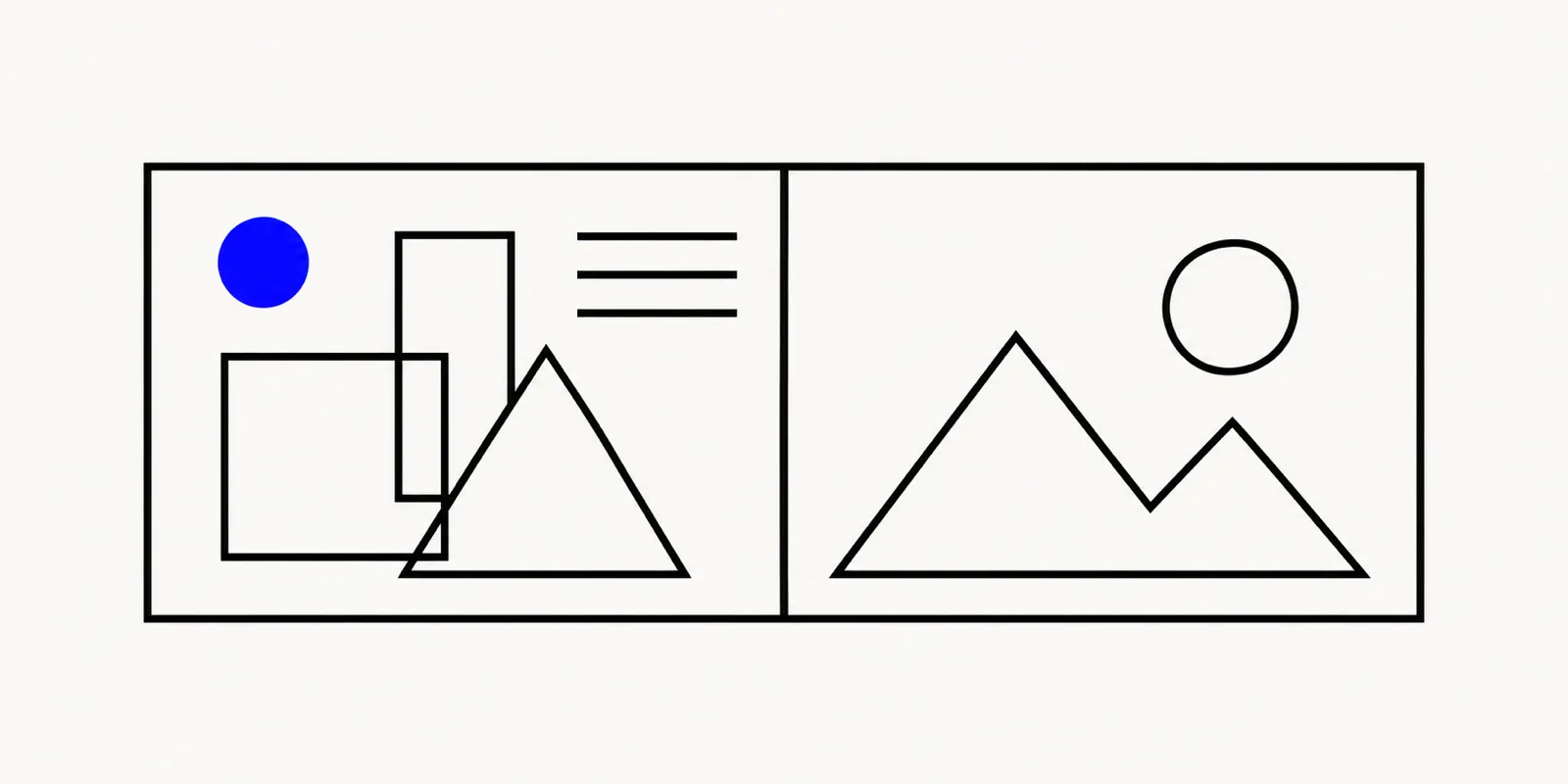
Illustration contrasting a Canva design canvas with layered text and shapes against a plain photo file, showing they resize differently.
When you just want to resize photo files, not a Canva design
If your actual task is "make these 30 product photos 800 pixels wide" or "shrink this folder of screenshots by half," you don't need a design tool at all — you need a resizer that works directly on image files. The Image Resizer does exactly that: it applies the same settings to a whole batch of images at once, using either an exact pixel size (from 1 to 10,000 pixels per side) or a percentage (10% to 300%), with an option to lock the aspect ratio so nothing stretches out of shape. It also includes presets sized for Instagram, Facebook, Twitter, LinkedIn, YouTube, and Open Graph images, so you don't have to look up exact dimensions yourself.
How to bulk resize images online for free
- Open the Image Resizer and upload your images — the same settings apply to the whole batch.
- Choose pixels or a percentage, and pick a social preset if you're targeting a specific platform.
- Keep "lock aspect ratio" on unless you intend to change the shape of the image.
- The output keeps the original format: a JPG stays a JPG, a WebP stays a WebP, and anything else exports as PNG.
- Download each result individually, or download the whole batch together.
No account, no upload to a server beyond your own browser's memory, and no Canva subscription required.
Pixels and percentage solve two different problems, and it's worth picking the right one rather than defaulting to whichever is first in the menu. Use an exact pixel size when a destination specifies a hard requirement — a marketplace that caps uploads at 2,000 pixels on the longest side, for instance. Use a percentage when you want every image in a mixed batch scaled by the same relative amount, like halving a folder of screenshots that are already a consistent size but too large collectively. Either setting applies to the whole batch at once, so there's no need to calculate the target size for each file individually.
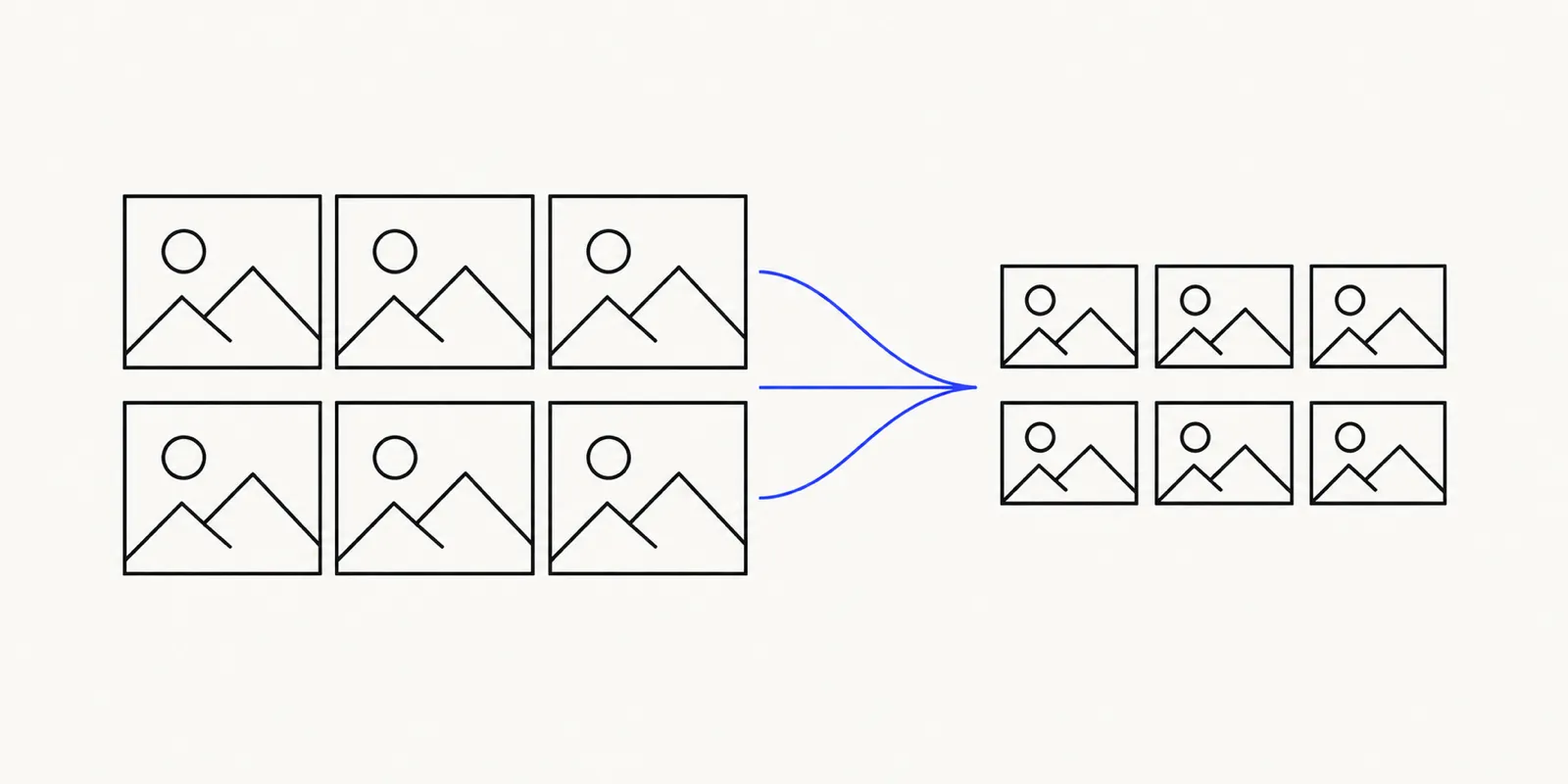
Illustration of a grid of photo thumbnails all being resized at once to the same smaller dimensions in a browser tool.
Need to crop instead of resize?
Resizing scales the whole image up or down; it doesn't change what's in the frame. If you actually need to cut away part of an image, or force it into a specific aspect ratio like a square or a widescreen banner, that's cropping, not resizing. The Image Cropper offers Free, Original, 1:1, 4:3, 3:2, 4:5, 16:9, and 9:16 ratios, plus exact pixel input when you need a precise frame, and exports to PNG, JPG, or WebP.
The two tasks often come up back to back: crop first to get the right composition and aspect ratio, then resize the cropped result to the exact pixel dimensions a platform or form actually requires. Doing them in that order, rather than resizing a poorly framed photo and hoping it looks right, tends to produce a cleaner final image.
Resizing specifically for Instagram
A lot of "canva image resizer" searches are really about getting photos sized correctly for social media. If the end goal is Instagram, the Instagram Grid Maker goes a step further than a plain resize: it splits one image across a 3-column grid of 1 to 5 rows, with each tile exported at 1080×1350 and numbered in posting order, so you get a cohesive profile layout instead of a single resized photo.
FAQ: Canva image resizer alternatives
Can I increase image size without losing quality?
You can increase an image's pixel dimensions with the Image Resizer, but it's worth being honest about what that does: upscaling adds pixels, not detail. Enlarging an image works by interpolating — estimating new pixel values from the ones around them — rather than recovering information that was never captured in the first place (Wikipedia, "Image scaling"). It won't sharpen a blurry photo or invent texture that wasn't captured in the original — it just makes the existing information larger. For the best result, start from the highest-resolution original you have rather than upscaling a small file repeatedly.
Do I need a Canva Pro account to resize images in bulk?
Not with aimagetools. Canva's own Help Center confirms its Resize and Magic Switch features are limited to Pro, Teams, Education, and Nonprofit plans as of October 2026. The Image Resizer applies the same resize settings to a whole batch of files for free, with no account of any kind.
What's the difference between resizing and cropping?
Resizing scales an entire image up or down while keeping the same content; cropping removes part of the image to change its framing or aspect ratio. Use the Image Resizer to make something bigger or smaller, and the Image Cropper when you need to cut the frame down to a specific shape.
Resize your images now
If you came looking for "canva image resizer" and just need plain image files resized in bulk, skip the paid plan: open the Image Resizer for pixel or percentage resizing across a whole batch, or go straight to the Instagram Grid Maker if the destination is a social profile.