


A photo collage puts several pictures into one image: two shots side by side, a 3×3 grid of a trip, a heart in the middle of a birthday layout. Your phone can already do some of this, but each built-in option stops somewhere. One caps you at six photos, another lines pictures up in a plain row, column or grid, and the grid templates keep their cells fixed, so you cannot drag the line between two photos. This guide covers what iPhone and Android can do on their own, when it is easier to make a collage online, and which layouts suit which kind of photos.
Quick route
- On any device, open the free Collage Maker, pick one of 800+ layouts, add your photos, and download a JPG or PNG with no watermark. Photos are processed in your browser and are not uploaded.
- On iPhone, the Photos app has no collage menu. Use the Shortcuts Combine Images action, Instagram's Layout in Stories, or Google Photos.
- On Android, Google Photos has Create → Collage, and Samsung Gallery has its own collage option.
How to make a collage online, step by step
A browser-based photo collage maker is the most flexible route, and it works the same on a laptop, an iPhone, or an Android phone. In the Collage Maker:
- Pick a layout. Choose how many photos you have (1 to 10), then a grid, wavy, diagonal, or heart layout. If nothing fits, start from a single cell and split it yourself, up to 20 cells.
- Add photos. Select several at once and they fill the empty cells in order. You can also drop a photo straight onto a cell, and iPhone HEIC files are converted on your device (more on the format in how to convert HEIC to JPG).
- Adjust the lines. Every divider has a handle. Drag it to give one photo more room, drag either end to tilt it, or switch it to a wavy line.
- Place each photo. Photos start out filling their cell. Drag one to reposition it, pull a corner to zoom, or drag just outside a corner to rotate it.
- Download. Set the spacing and border color, choose 1080px, 2K or 4K, and save as JPG or PNG.
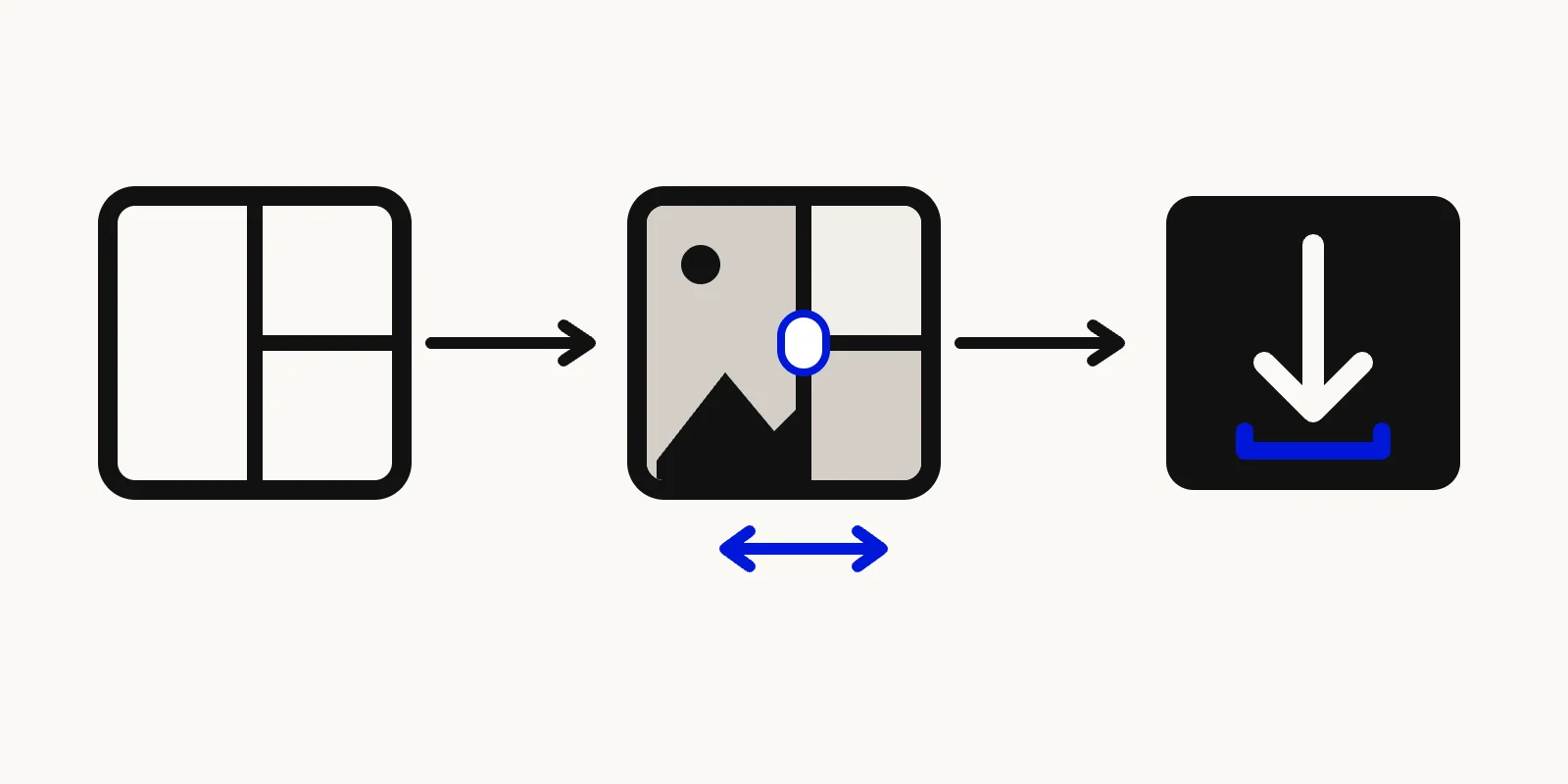
Illustration of the collage steps: pick a layout, drag the divider between photos, then download the finished collage.
There is no account and no watermark, and because the collage is drawn in your browser, the photos never go to a server.
How to make a collage on iPhone
Apple's Photos app can crop, edit, and share, but it has no dedicated collage menu. That leaves four practical routes.
Shortcuts: Combine Images
The Shortcuts app includes a Combine Images action, listed by Apple among its image transform actions (Apple Support, "About transform actions in Shortcuts"). A simple shortcut uses three actions: Select Photos with Select Multiple turned on, Combine Images, and Save to Photo Album. Combine Images can place pictures horizontally, vertically, or in a grid, with a spacing value in pixels (How-To Geek).
It is quick once it is set up, but every photo keeps its full frame. You cannot crop a photo inside its cell, resize one picture relative to the others, or add a border color.
Instagram Stories: Layout
In the Instagram Stories camera, tap Layout in the side toolbar, pick a grid, and fill each section by shooting or uploading. One story frame holds up to six photos (Instagram, "How to use Instagram Stories"). The separate Layout from Instagram app was shut down on May 29, 2024, and its features moved into Stories (Instagram).
The result is a 9:16 story frame, so it suits stories better than feed posts.
Google Photos for iPhone
Google Photos runs on iPhone too; its collage editor needs iOS 18 or later and app version 7.64 or later. Select photos, then tap Create → Collage (Google Photos Help, "Make & edit collages"). The Android section below has the details.
Freeform or a browser tool
Freeform lets you drop photos onto a board, crop and mask them (Apple Support). That suits a loose scrapbook more than a tidy grid. For a grid, a heart, or lines you can move, open the Collage Maker in Safari. It works the same as on a computer.
How to make a collage on Android
Google Photos
Select the photos and tap Create → Collage, or tap Create at the top right and choose Collage (Google Photos Help). On a phone you can start a collage with up to 6 photos; on photos.google.com the limit is 9. Inside the editor you can switch templates, replace a photo, long-press to reorder, pinch to zoom, rotate with two fingers, and change the border thickness, corner radius, and color. On Android, the collage editor needs Android 8.0 or later and at least 3 GB of RAM.
Grid templates keep their cells fixed, so you cannot drag a line to make one photo larger.
Samsung Gallery
On Galaxy phones, open Gallery → Story → ⋮ → Create collage, select up to 6 photos, choose a layout, then adjust the ratio and border before saving (Samsung support). Newer models also offer a freeform collage through Create → Collage after selecting photos, where you place and size photos by hand (Samsung support). Menu names vary by model and One UI version.
Built-in options at a glance
- Shortcuts (Combine Images): iPhone and iPad. Apple does not state a photo limit. Photos line up in a row, a column or a grid, and you cannot move the line between them.
- Instagram Stories Layout: iPhone and Android, up to 6 photos in a 9:16 story frame, fixed grid.
- Google Photos: Android, iPhone and the web, up to 6 photos on a phone and 9 on the web, fixed grid cells.
- Samsung Gallery: Galaxy phones, up to 6 photos in a Story collage with fixed layouts. Newer models add a freeform mode without a grid.
- Collage Maker: any browser, layouts for 1 to 10 photos and up to 20 cells when you split them yourself. Every line can be moved, tilted or made wavy.
Photo collage ideas, and the layout that fits each
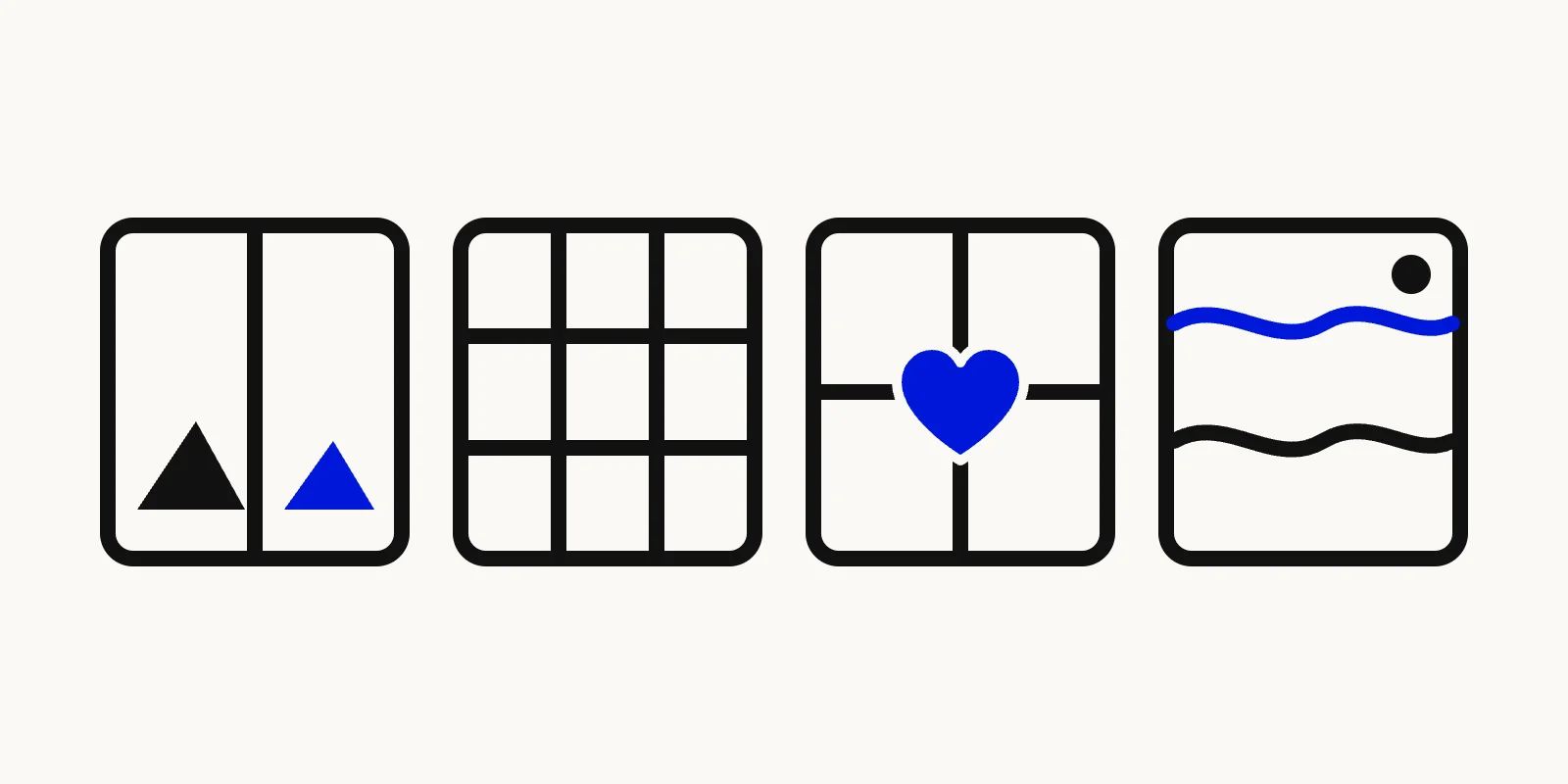
Four collage layout ideas: a two-photo before and after split, a 3×3 grid, a heart over a four-photo grid, and a layout with wavy dividers.
Before and after
Two photos side by side or stacked, for a room makeover, a haircut, or a cleaned-up desk. Keep the divider in the exact center so neither side looks favored, and use the same crop on both photos.
Trip highlights
Three to six photos with one large hero shot. Pick a layout where one cell takes half the frame, then put the landscape there and food or street shots in the smaller cells. A wavy divider between the hero and the rest makes it feel less like a spreadsheet.
Birthday or anniversary
A grid of photos with a heart in the middle. Put the photo of the person or couple in the heart and use the cells around it for the party or the year in review.
A year of growth
A 3×3 grid of a child or a pet, one photo per month, taken from a similar angle. For a full year, start from a 3×3 layout and split three cells to get 12. Thin white spacing keeps the faces as the focus.
Event recap
One group photo across the top and smaller detail shots below: the cake, the venue, the dance floor. A layout with one wide cell over three narrow ones does this well.
Pick the right size before you export
Choose the canvas shape for where the collage will end up. Instagram stories use a 9:16 frame. Instagram moved profile grids from squares to taller rectangles in January 2025 (Engadget), so a 4:5 or 3:4 collage loses less to cropping on a profile than a square one. Planning an Instagram grid covers how posts line up there. For printing, use A4. For slides or a blog header, use 16:9 or 3:2.
Export at 2K or 4K if you might print the collage or crop into it later; if a site needs exact pixel dimensions, run the result through the Image Resizer. JPG keeps the file small for messaging apps. PNG is lossless.
If you are working the other way round, turning one wide photo into several posts for an Instagram grid, that is a split rather than a collage. The Instagram Grid Maker handles that.
FAQ: making photo collages
Is there a collage maker built into the iPhone?
Not in the Photos app. The closest built-in tool is the Combine Images action in Shortcuts, which lines photos up in a row, a column, or a grid. Instagram Stories and Google Photos also make collages on iPhone.
How do I make a collage without a watermark?
Google Photos, Samsung Gallery, and Shortcuts do not add one. Some free collage websites add one on their free plan. The Collage Maker here downloads without a watermark and without an account.
How many photos can I put in one collage?
Google Photos starts a collage with up to 6 photos on a phone and 9 on the web; Instagram Stories and Samsung's Story collage also stop at 6. The Collage Maker has preset layouts for 1 to 10 photos and lets you split cells yourself up to 20.
Can I make a heart-shaped photo collage?
Yes. In the Collage Maker, pick a photo count, filter by Heart & circle, and drop a photo into the heart. You can move and resize the heart with its handles, or add one to any layout.
Make your collage now
Choose a layout, drag the lines until each photo has the space it needs, and download the result. The Collage Maker is free, runs in your browser, and does not upload your photos.