
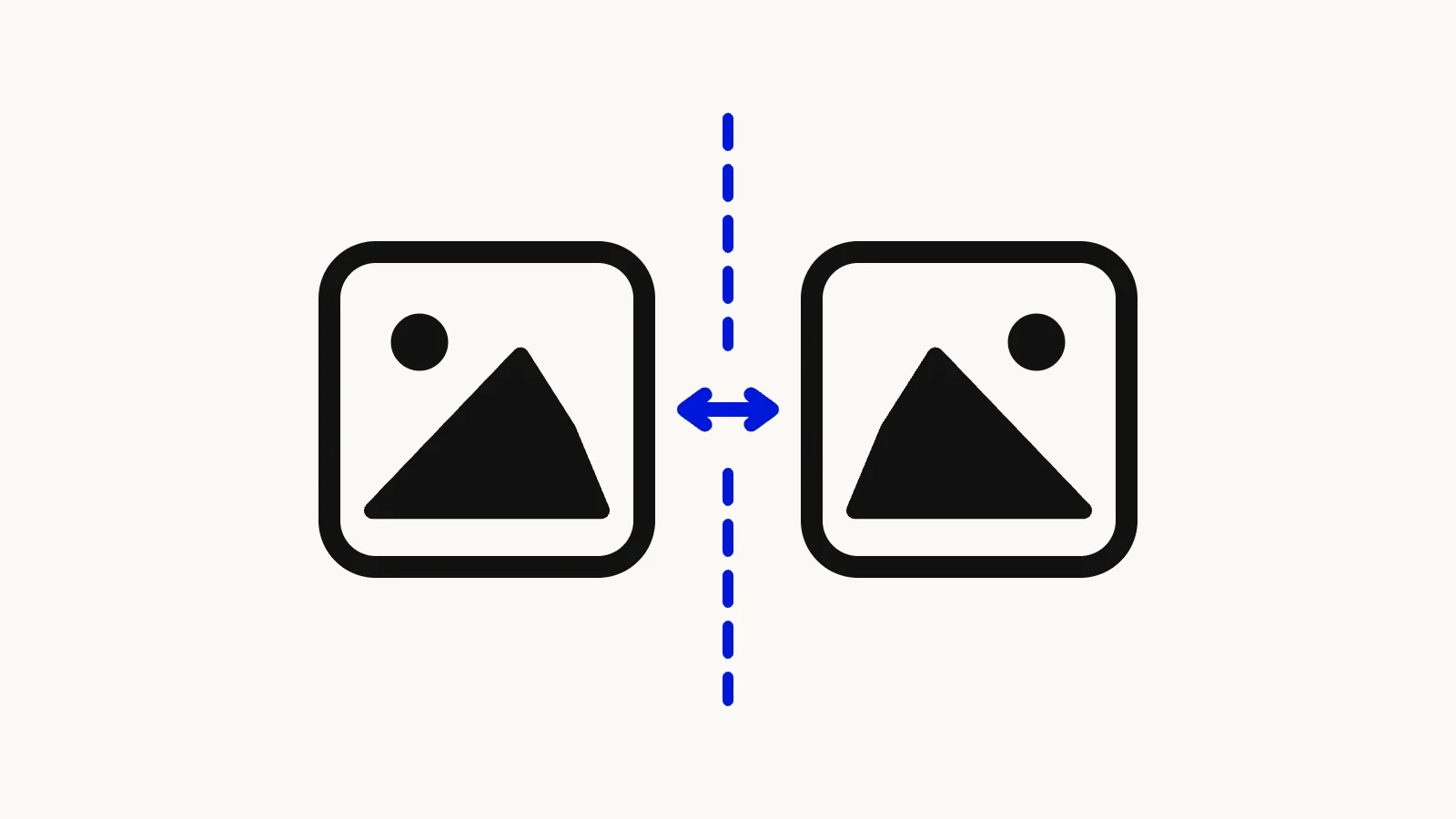

Text on a T-shirt reads backwards, a logo faces the wrong way, or a selfie just looks "off" compared to what you saw in the camera preview. All three are fixed the same way: flip the photo. The Image Flipper mirrors a picture horizontally, vertically, or both, right in your browser, and gives you back a full-resolution file without asking you to sign up.
Quick route
- Use the Image Flipper to mirror a JPG, PNG, WebP, AVIF, or HEIC photo left-to-right or upside down, then download it as PNG, JPG, or WebP.
- Use the Image Rotator instead if the picture is sideways rather than backwards. Rotating turns an image; flipping mirrors it.
- Already on a phone? The built-in Photos apps on iPhone and Android can flip too. The steps are below.
Flip vs. rotate: which one do you actually need?
The two get mixed up constantly, and the difference matters for anything with text in it.
A horizontal flip mirrors the image across a vertical line through its center. Left becomes right, and any writing in the photo reads backwards. A vertical flip mirrors across a horizontal line, so the top becomes the bottom. In CSS terms, a horizontal flip is exactly transform: scaleX(-1), which MDN describes as an "axial symmetry, with a vertical axis passing through the origin" (MDN, "scaleX()").
A rotation spins the whole image around its center without mirroring anything, so text stays readable at any angle. One detail trips people up: flipping horizontally and vertically at the same time gives the same result as rotating 180°. In two dimensions, reflecting through a point is the same as a half turn (Wikipedia, "Point reflection"). That's why some apps describe a "flip by 180 degrees". A single flip is never a rotation, though.
The rule of thumb: if the picture is lying on its side or upside down but text still reads correctly, rotate it. If text reads backwards or the scene is a mirror image of reality, flip it.

Illustration comparing a horizontally flipped photo with backwards text against a rotated photo where text stays readable.
Why your selfies come out mirrored (or don't)
The front camera preview on most phones behaves like a mirror, because that's what feels natural when you're framing your own face. The saved photo is a different story. By default, the iPhone Camera app flips the final shot back to how other people see you, which is why a selfie can look subtly wrong compared to the preview (MacRumors, "How to Stop iPhone Flipping Your Selfie Shots").
If you'd rather keep the shot exactly as it looked in the preview, iPhone has a setting for it. Open Settings, tap Camera, and turn on Mirror Front Camera. Apple describes it as taking a selfie "that captures the shot as you see it in the front-facing camera frame, rather than reversing it" (Apple Support, "Take a selfie on iPhone"). The option arrived in iOS 14, according to MacRumors.
The setting only affects new photos. For selfies already in your camera roll, you'll need to flip them after the fact, either in Photos or with an online flipper.
How to flip a photo online, step by step
This method works the same on Windows, Mac, Chromebook, Android, and iPhone, because everything runs in the browser.
- Open the Image Flipper and drop in a photo. JPG, PNG, WebP, AVIF, HEIC, and HEIF are accepted, up to 50 MB per file.
- Click Flip horizontal to mirror left-to-right, Flip vertical to turn it upside down, or both. The preview updates instantly, so you can toggle back and forth until it looks right.
- Pick an output format. JPG and WebP files keep their format by default; most other inputs default to PNG, which is lossless.
- Click Flip image, then download the result. The file is saved at full resolution with
-flippedadded to the name, so it won't overwrite your original.
The photo is processed inside your browser tab and never uploaded to a server. As a side effect of re-encoding the image, location and camera metadata (EXIF) is not carried into the flipped copy, which is useful if you're about to post the picture publicly.
Transparency survives the flip when you save as PNG or WebP. If you choose JPG, which has no transparency channel, any transparent areas are filled with white.
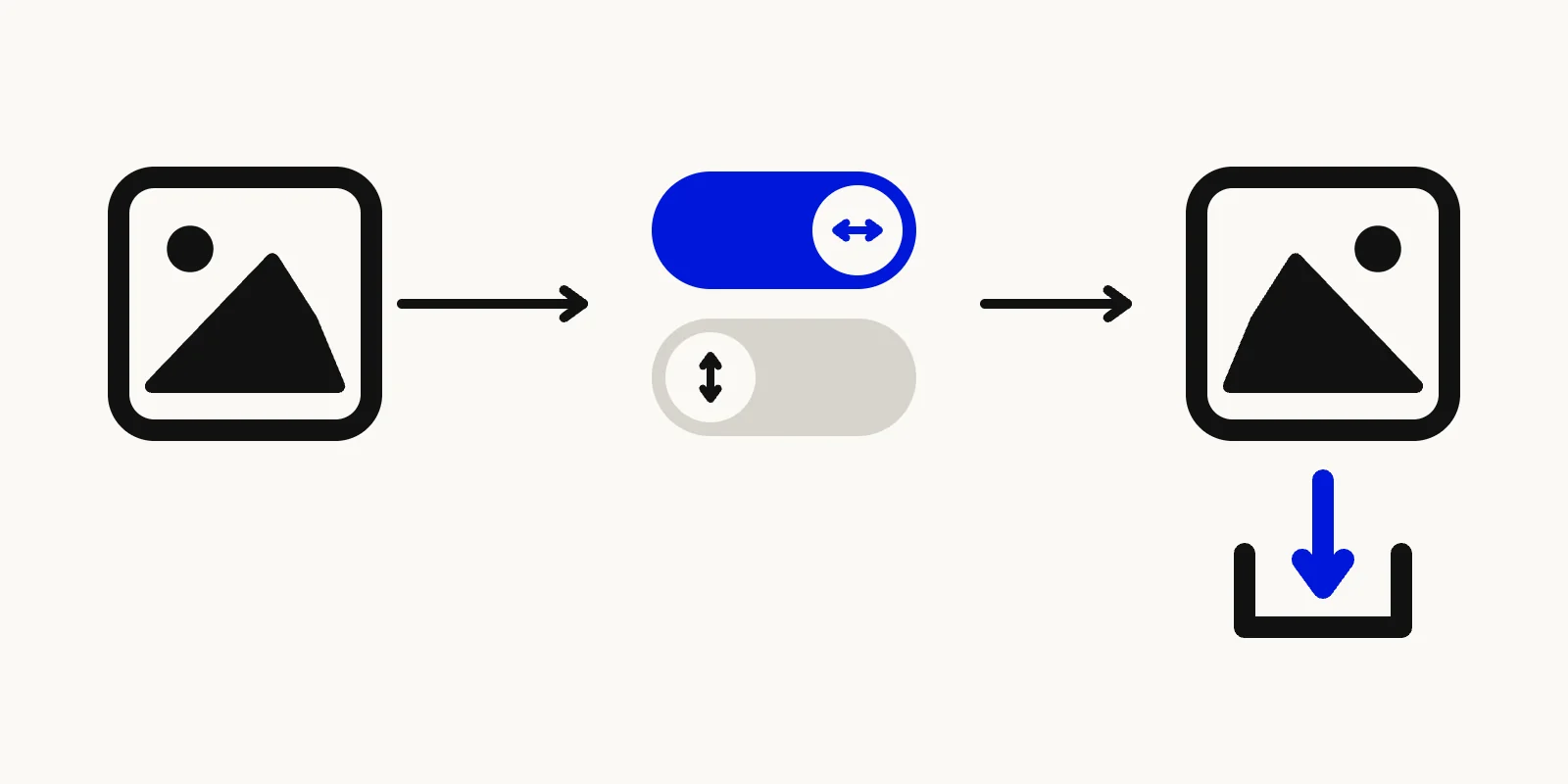
Illustration of a photo being mirrored with flip-horizontal and flip-vertical toggles, then downloaded as a new file.
How to flip a picture on iPhone
The Photos app can do it without any extra app:
- Open the photo and tap Edit.
- Tap Crop.
- Tap the flip button at the top of the screen to flip the image horizontally.
- Tap Done.
Apple's guide confirms the flip button mirrors "the image horizontally", and you can undo it later by tapping Edit and then Revert (Apple Support, "Crop, rotate, flip, or straighten photos and videos on iPhone"). There's no vertical flip button in the iPhone Photos editor. To turn a photo upside down, flip it horizontally and rotate it 180°, or use the Image Flipper, which has a vertical toggle.
How to flip a picture on Android
Google Photos includes a flip control in its crop tools. Open the photo, tap Edit, go to Crop, and tap Mirror (on iPhone and iPad the same button is labeled Flip). Rotate is a separate button that turns the photo 90° at a time (Google Photos Help, "Edit your photos & videos").
Google notes that editing needs Android 8.0 or later, and some features are limited to certain devices. If you don't see the option, or the photo is in a different gallery app, the browser method above works on any Android phone.
How to flip an image on Windows and Mac
Windows: open the image in the Photos app, press Ctrl + E to edit, and use Flip image horizontally or Flip image vertically on the crop toolbar (Microsoft Support, "Edit photos and videos in Windows").
Mac: open the image in Preview and choose Tools > Flip Horizontal or Flip Vertical (Apple Support, "Crop, resize, or rotate an image in Preview on Mac"). Preview saves the change into the original file, so duplicate it first if you want to keep both versions.
When flipping is (and isn't) a good idea
Flipping is the right fix for mirrored selfies, product photos that should face the other way on a page layout, and design assets that need to point toward the text next to them.
Be careful with anything that has to stay true to life. Flipped text, license plates, clock faces, and logos are instantly obvious to viewers. If a photo contains readable writing, check it after flipping. If only the composition needs to face the other way, it can be better to crop or reframe instead. The Image Cropper handles that without mirroring anything.
FAQ: flipping photos
Does flipping a photo reduce its quality?
Flipping itself doesn't change any pixel values; it only moves them. If you save as PNG, the result is lossless. Saving as JPG or WebP re-compresses the image at a high quality setting, which is visually indistinguishable for ordinary photos.
How do I unflip a mirrored selfie?
Flip it horizontally once more. Two horizontal flips cancel out, so the Image Flipper or the flip button in your phone's Photos app will restore the original orientation. To stop new selfies from being reversed on iPhone, use Settings > Camera > Mirror Front Camera.
Can I flip an image vertically?
Yes. The Image Flipper has separate horizontal and vertical toggles, and so do the Windows Photos app and Mac Preview. The iPhone Photos editor only flips horizontally.
Flip your photo now
Most flips take under a minute. Open the Image Flipper, mirror the picture the way you need, and download a full-resolution copy. If the photo is sideways rather than backwards, the Image Rotator is the faster fix.