
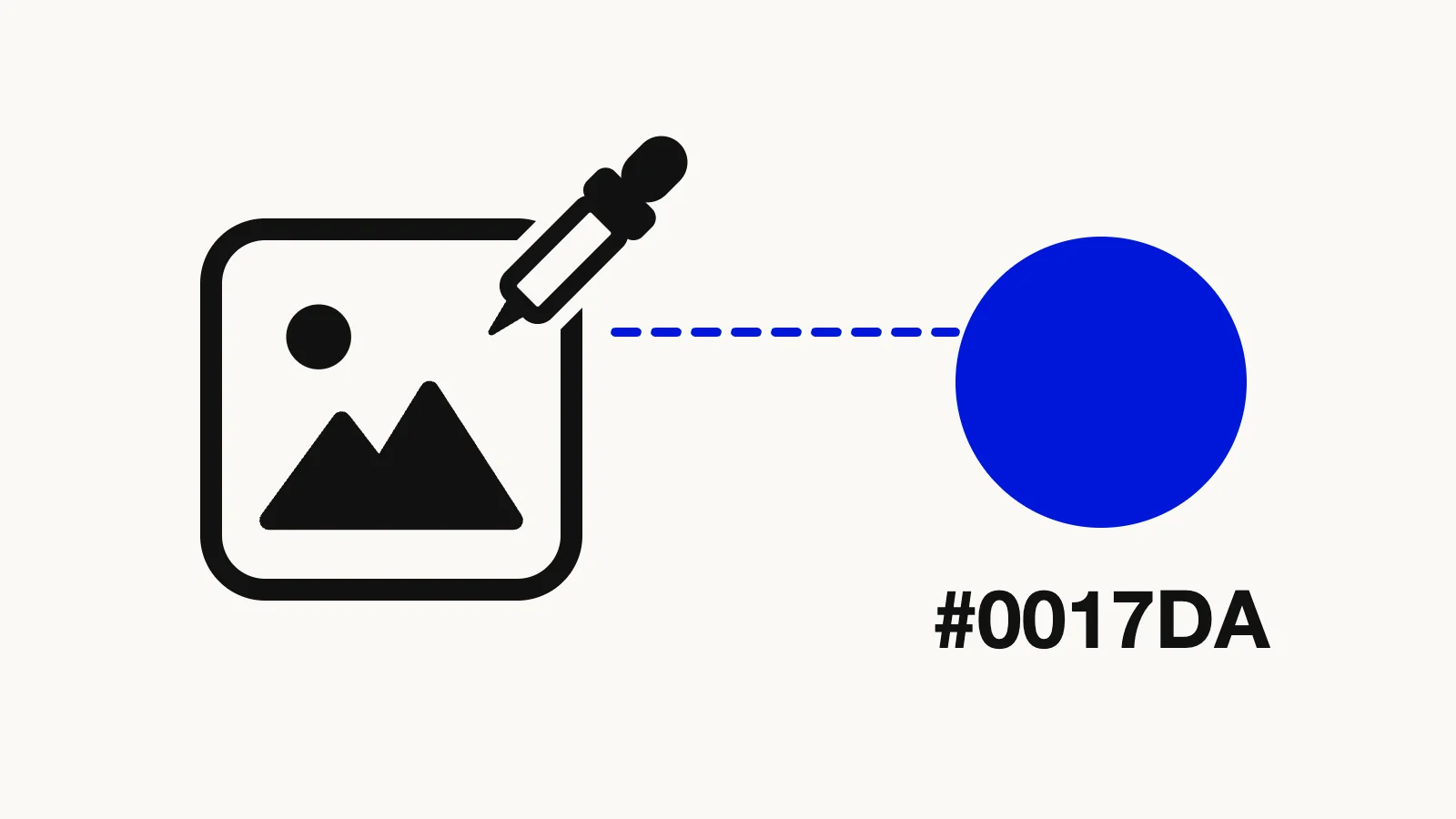

You've found the perfect shade of blue in a photo, a screenshot, or a competitor's banner, and now you need its exact code for a slide deck, a website, or a print order. Guessing with a color slider rarely gets it right. The Image Color Picker reads the exact pixel you click and gives you its HEX, RGB, and HSL values, each with a copy button, without uploading the image anywhere.
Quick route
- Open the Image Color Picker, drop in a JPG, PNG, WebP, AVIF, or HEIC image, and click the color you want.
- Copy the code as HEX (
#1a73e8) for most design tools and CSS, RGB for apps that ask for three numbers, or HSL when you want to make lighter or darker variations. - Check the Palette panel for the up to 8 most common colors in the image, each shown with its share of the picture.
HEX, RGB, and HSL: which code do you need?
All three describe the same sRGB colors, just written differently.
- HEX packs red, green, and blue into a six-character code like
#BD55DA. Each pair is a value "between 0 and ff (255)" written in hexadecimal (MDN, "hex-color"). It's the format most design apps, brand guides, and website builders expect. - RGB writes the same three values as ordinary numbers from 0 to 255, such as
rgb(189 85 218)(MDN, "rgb()"). Presentation and spreadsheet apps often ask for color this way. - HSL describes the color as hue, saturation, and lightness, where lightness "100% is white, 0% is black, and 50% is 'normal'" (MDN, "hsl()"). It's the easiest format to tweak by hand. Raise the lightness for a tint, lower it for a shade, and the hue stays the same.
If a tool asks for a color and you're not sure which format it wants, HEX is the safest default.
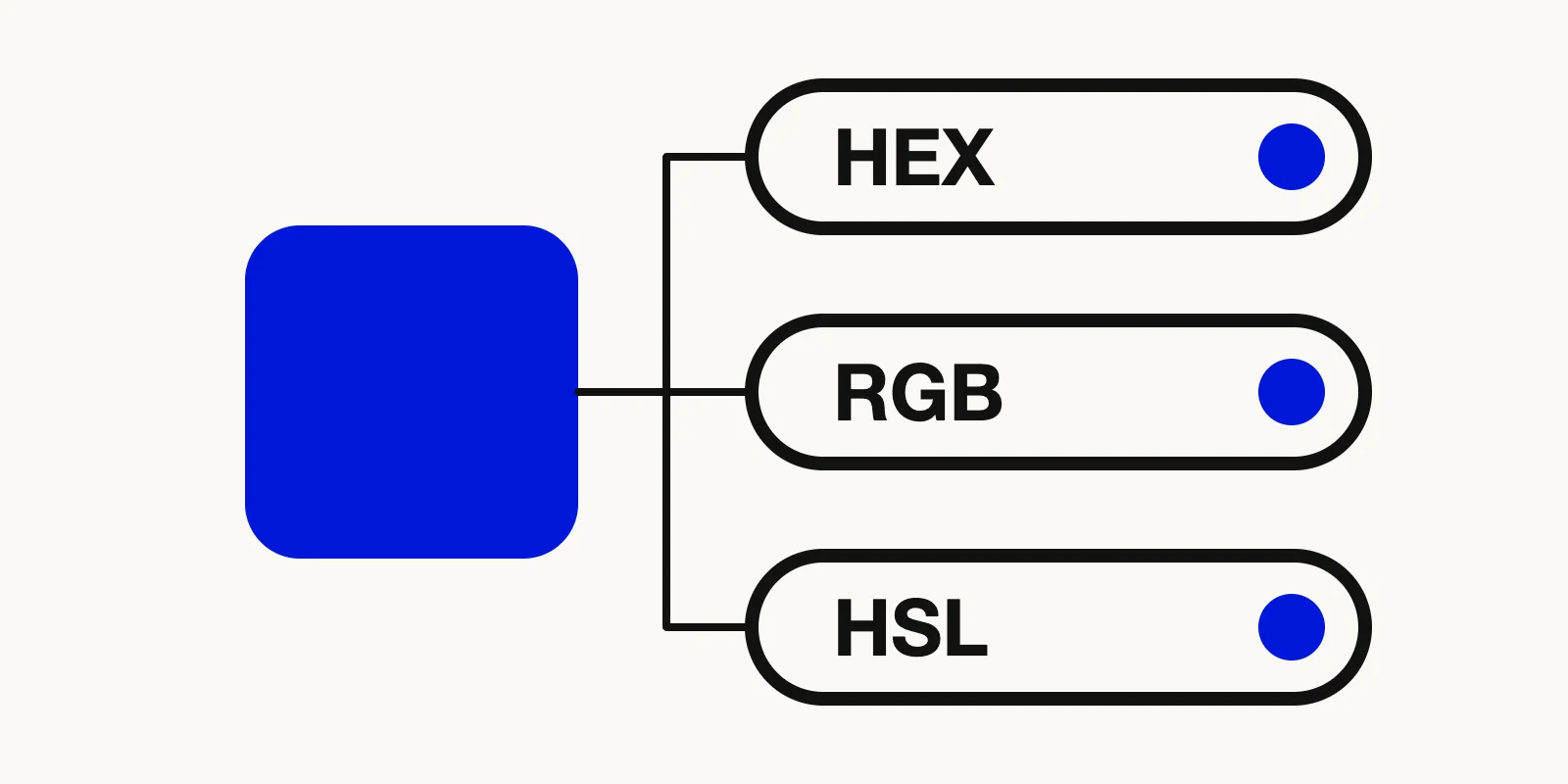
Illustration of one picked color swatch shown with three equivalent codes in HEX, RGB, and HSL formats.
How to get a color code from an image, step by step
- Open the Image Color Picker and drop in your image. JPG, PNG, WebP, AVIF, HEIC, and HEIF files up to 50 MB work; GIFs don't.
- Move over the image. An 11 × 11 pixel magnifier follows your pointer, so you can see exactly which pixel you're about to pick, even on small details.
- Click or tap the color. For pixel-perfect control, focus the image and use the arrow keys to move one pixel at a time (hold Shift to move ten), then press Enter to pick.
- Copy the value you need from the HEX, RGB, or HSL field. The picker also shows the closest named CSS color, which helps when you just need to describe a color in words.
Every color you pick is kept in a Recent colors row (up to 12), stored only in your own browser, so you can collect a small set of brand colors from one image and copy them later.
Nothing is uploaded. The image is read on a canvas in your browser, and the tool works without an account. Very large images are shown as a smaller working copy so picking stays smooth, and the page tells you when that happens.
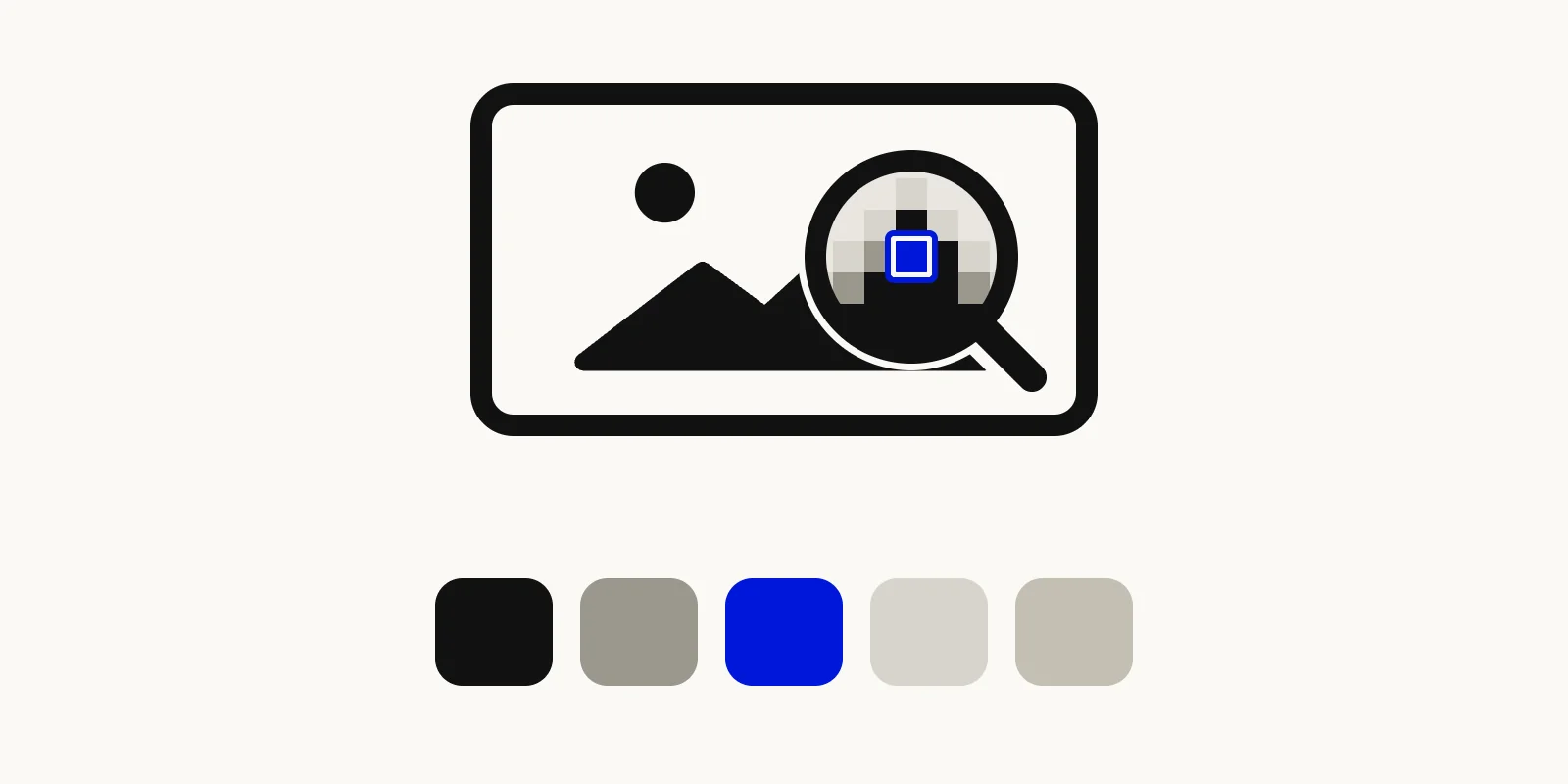
Illustration of a magnifier loupe over a photo with the picked color and a row of extracted palette swatches below.
Pulling a whole palette instead of one color
Sometimes you don't need one exact pixel; you need the overall color scheme of a photo, a mood board, or a logo. The Palette panel groups similar pixels together and lists the up to 8 most common colors, with the percentage of the image each one covers. Click any swatch to load its codes into the main panel.
This is faster than clicking around a photo looking for the "main" color, and it ignores one-off pixels such as a small highlight or a speck of noise.
Picking a color from anywhere on your screen
If the color is on a website or in another app rather than in an image file, you have a few options:
- In Chrome or Edge on a computer, the Image Color Picker shows a Pick from screen button. It uses the browser's EyeDropper API, which lets you "sample colors from their screens, including outside of the browser window" (MDN, "EyeDropper API"). Browsers without this API don't show the button.
- On Windows, Microsoft's free PowerToys includes a Color Picker that copies colors from anywhere on the screen, with a default shortcut of Win + Shift + C and HEX as the default format (Microsoft Learn, "Color Picker utility").
- On a Mac, the built-in Digital Color Meter app shows the values of the pixels under your pointer, and Shift + Command + C copies the color as text (Apple Support, "Digital Color Meter User Guide").
- For web developers, Chrome DevTools has an eyedropper inside its color picker that can sample from the page or anywhere on screen (Chrome for Developers, "Inspect and debug CSS colors").
Another simple route is to take a screenshot and drop it into the image picker. That works on any device, including phones.
Why the picked color doesn't always match the "real" color
If you pick a logo color from a photo and it's slightly off from the official brand color, the tool is usually reading the pixel correctly. The pixel itself is different. Common reasons:
- JPEG compression. JPEG stores color at a lower resolution than brightness, which can cause visible degradation "where colors change abruptly" (Wikipedia, "Chroma subsampling"). Small text and sharp edges in a JPG are the worst places to pick from.
- Anti-aliasing at edges. Smooth edges are drawn by blending boundary pixels with the background (Wikipedia, "Spatial anti-aliasing"). Pick from the middle of a flat area, never from the border of a shape.
- Lighting and camera processing. A photo of a printed logo captures the lighting in the room, not the ink's color code.
- Wide-gamut colors. Many newer screens and phone cameras use Display P3, which "includes vivid colors that aren't available in sRGB" (WebKit, "Wide Gamut Color in CSS with Display-P3"). HEX and RGB codes describe sRGB, so very saturated colors can be clipped to the nearest sRGB value. Chrome's own eyedropper works the same way.
For an official brand color, the best source is still the brand's style guide or the original design file. A picker is the right tool when that isn't available.
Checking that text on your color is readable
Once you have a background color, check it against your text color before using it. WCAG 2.2 asks for a contrast ratio of at least 4.5:1 for normal text and 3:1 for large text (at least 18 point, or 14 point bold) (W3C, "WCAG 2.2, Contrast (Minimum)"). Paste the HEX codes you picked into any contrast checker to confirm.
FAQ: picking colors from images
How do I find the HEX code of a color in a picture?
Upload the picture to the Image Color Picker, click the color, and copy the value from the HEX field. Zoom in with the magnifier and pick from a flat area away from edges for the most accurate result.
Can I get a color code from an image on my phone?
Yes. The Image Color Picker works in mobile browsers. Tap the image to pick a color, then tap the copy button next to the code. To get a color from an app or website, take a screenshot first and upload that.
Is the image uploaded when I pick colors?
No. The image is read locally in your browser, and recent colors are saved only in your browser's storage. Nothing is sent to a server.
Find your color code now
Open the Image Color Picker, drop in your image, and copy the exact HEX, RGB, or HSL value in a few seconds. If the image needs cleaning up first, the Image Cropper can cut it down to the area you care about.