
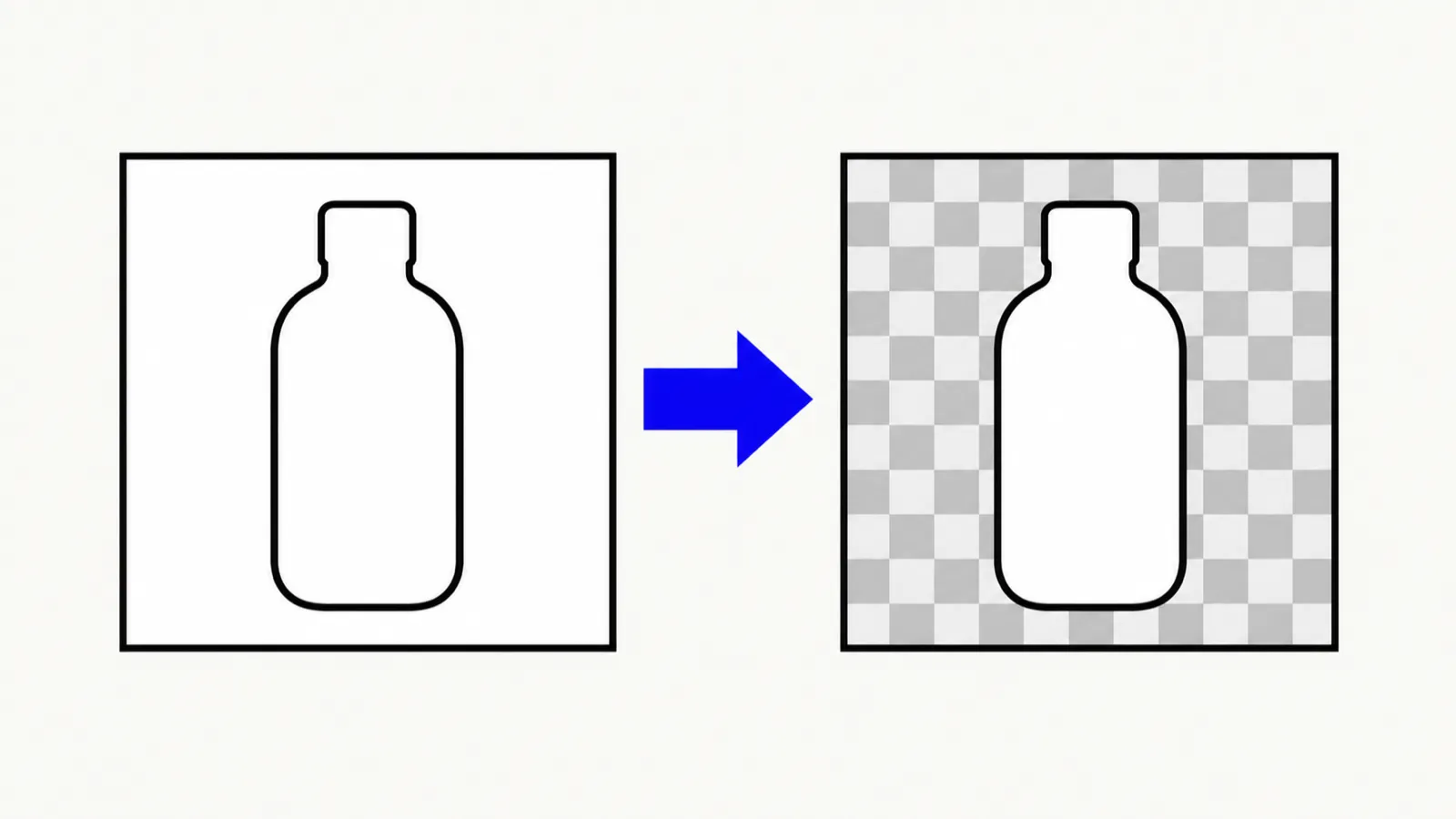

Photoshop can remove a background, but it's a paid, subscription-only app — and for a simple white or solid-color background, it's more tool than most people need. The Background Remover does the same job for free, directly in your browser, using color-based selection rather than a full image editor. It's a manual tool, not AI, so it's built specifically for the white and solid-background case this guide covers.
Quick route
- Use the Background Remover for a free, no-account way to make a white or solid background transparent.
- Use JPG to PNG first if your source file is a JPG and the software you're uploading to requires a PNG container before you start editing.
- Use Photoshop's own Remove Background or Select Subject tools (covered below) if you already pay for Creative Cloud and the background is complex, not just solid-colored.
Removing a background in Photoshop
Adobe documents background removal in Photoshop through a few different tools, depending on the version and the complexity of the image:
- Remove Background (Quick Action). In the Discover panel, selecting Remove Background automatically isolates the main subject and either creates a transparent background or a layer mask you can refine further (Adobe, "Remove image backgrounds in Photoshop").
- Select Subject. This automatic selection tool detects the main subject and applies a selection you can process on-device or in the cloud for a more refined result (Adobe, "Improve Select Subject and Remove Background results").
- Magic Wand plus Select Subject. For simpler, more uniform backgrounds, Adobe's own walkthrough pairs the Magic Wand tool with Select Subject to select most of the subject before refining the edges manually.
All of this requires Photoshop itself, which is a paid Creative Cloud app — there's no free, full version of Photoshop. If the background you're removing is genuinely complex (hair, fur, motion blur, a busy scene), Photoshop's subject-detection tools are a legitimate reason to reach for it. If it's a plain white or solid-color backdrop, that's overkill.
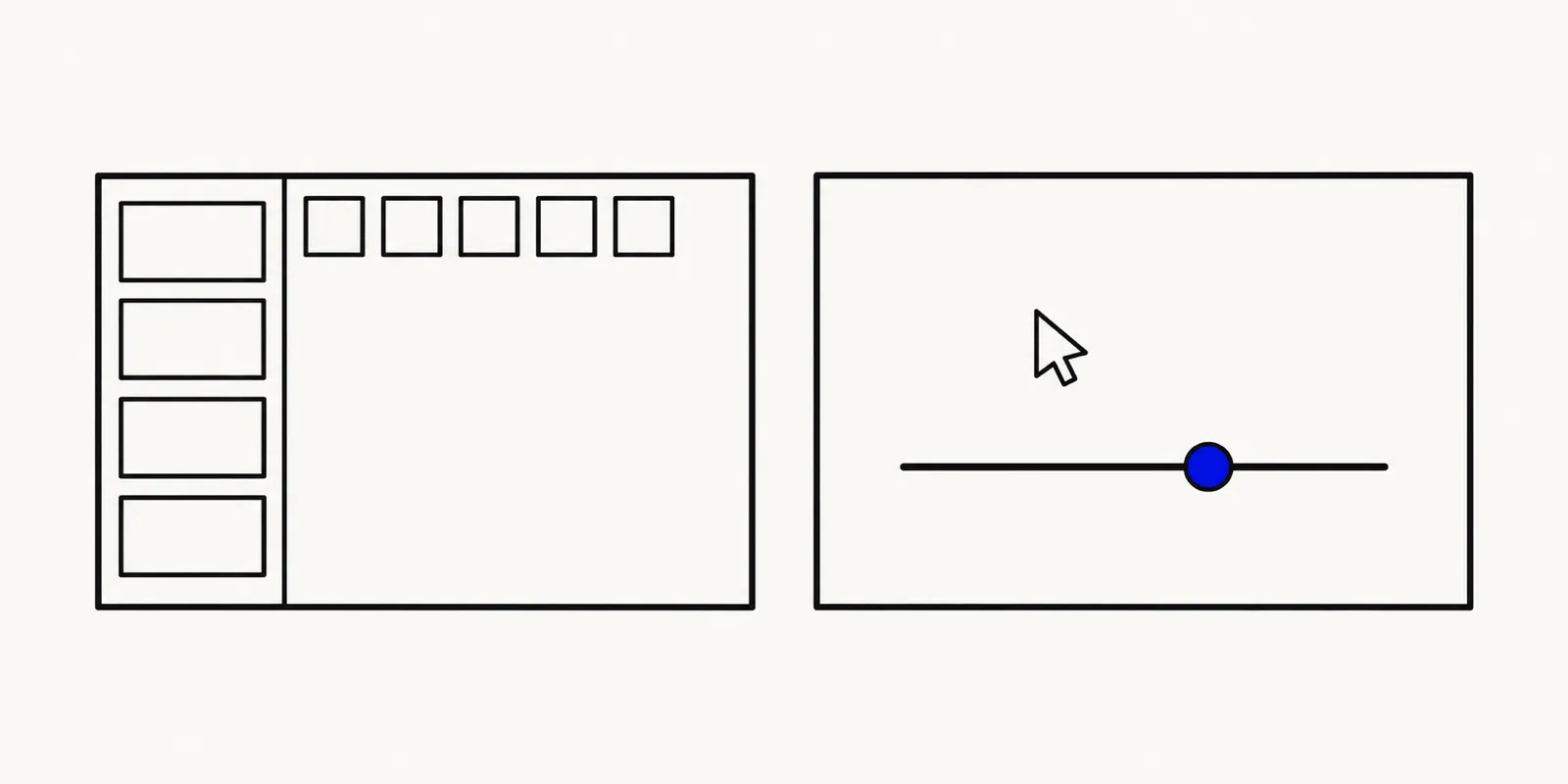
Illustration contrasting a Photoshop toolbar with layered panels against a simpler browser window showing a single click-to-select tool.
A free browser alternative for solid and white backgrounds
The Background Remover is a manual, color-based tool — it works by selecting pixels of a similar color, the way a Magic Wand tool does, rather than detecting "the subject" with AI. That makes it especially well suited to exactly the case most people searching "remove white background" actually have: a product photo, a logo, or a portrait shot against a plain white or solid studio backdrop.
- Upload your image to the Background Remover.
- Click anywhere on the background with the Magic Wand to select it by color.
- Adjust the tolerance to catch more or less of the surrounding shade — raise it for a background with soft shadows or slight color variation, lower it to avoid eating into the subject.
- Use feathering to soften the selection edge, and switch between contiguous (connected pixels only) and global (every matching pixel in the image) depending on whether the background touches itself throughout the photo.
- Clean up any missed spots with the brush or rectangle selection tools.
- Export as a transparent PNG or WebP, or flatten it onto a background color of your choice if you'd rather have a solid color than transparency.
A product photo is a common case worth calling out specifically, because the goal there usually isn't transparency at all. Many marketplaces and catalogs want a plain, evenly white background rather than a see-through PNG — just cleaner and more consistent than the original studio shot. The same selection-and-tolerance workflow covers that too: once the background is selected by color, flattening it onto solid white instead of exporting with transparency removes uneven lighting, faint shadows, or a slight color cast the original photo picked up, without touching the subject itself.
No account, and the image is processed in your browser rather than uploaded anywhere — the whole sequence usually takes well under a minute on a simple background.
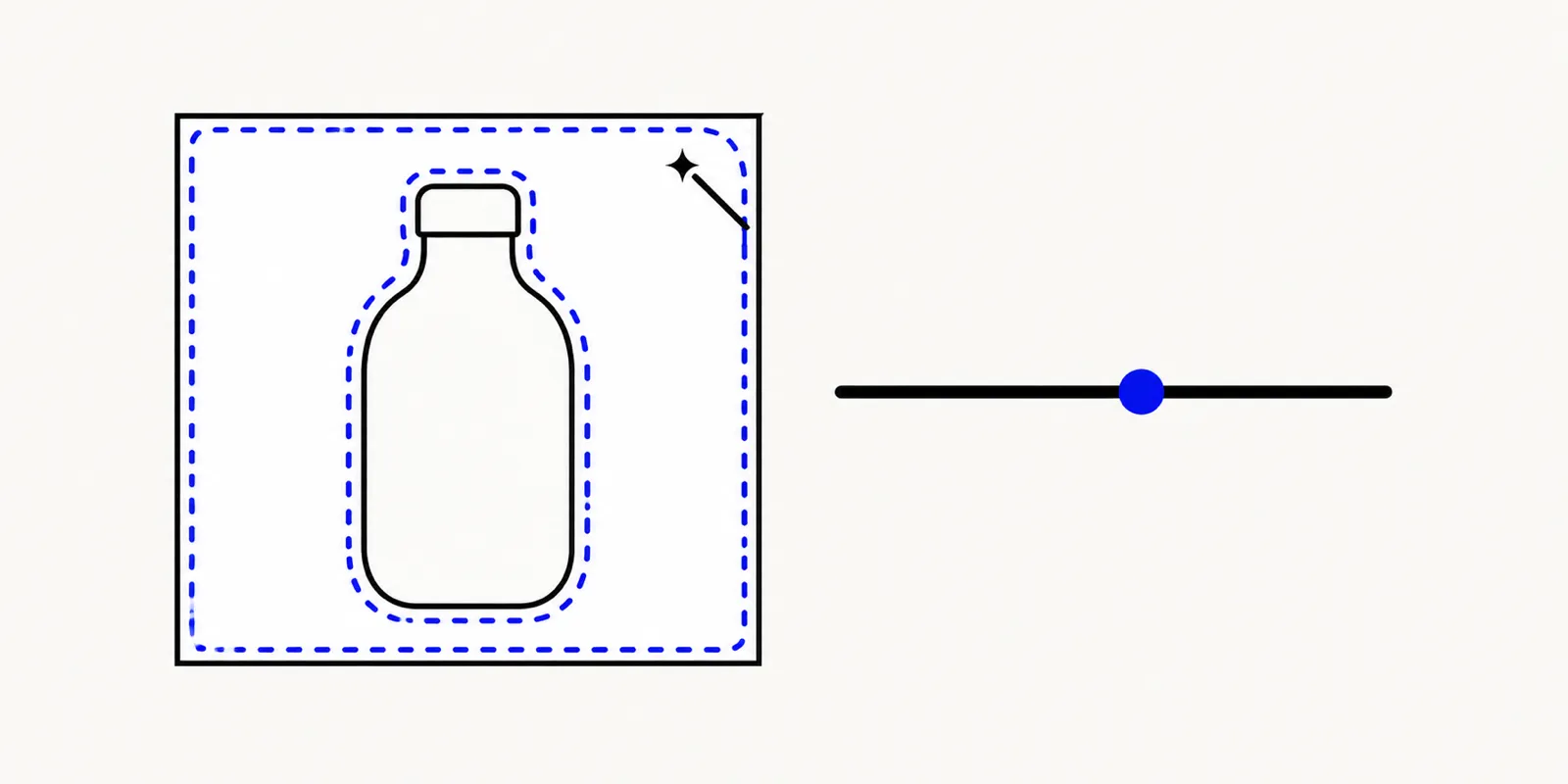
Illustration of a product photo with a white background being selected by a magic wand tool, with a tolerance slider shown alongside.
Where a color-based tool works best — and where it doesn't
Being direct about this up front saves time: a color-based selection tool is not the same thing as AI subject detection. It excels on solid, even backgrounds — white studio backdrops, flat-color product shots, logos on a plain fill — because the whole background really is one color (or a narrow range of it) that a click and a tolerance setting can capture cleanly. It struggles on busy, textured, or multi-color backgrounds, where "the background" isn't one consistent color to begin with.
If your photo has a complicated background — outdoor scenes, patterned fabric, hair against a cluttered backdrop — a color-based tool will need more manual cleanup with the brush and rectangle tools, or it may be faster to reach for Photoshop's Select Subject feature instead, which is built for exactly that harder case.
A practical rule of thumb: if you could describe the background in one sentence as "it's all one color" — white, black, a seamless studio sweep, a solid product-shot backdrop — a color-based tool will usually get you a clean result in under a minute. If describing the background takes several sentences, that's a sign it isn't one solid color, and the time you'd spend fighting tolerance settings and brushing in missed edges is better spent in a tool with actual subject detection.
JPG, PNG, and transparency: why format matters
JPG cannot store transparency at all — there's no alpha channel in the format (MDN, "Image file type and format guide"). That means once you remove a background and want the see-through result to actually stay transparent, you need to export as PNG or WebP, not JPG. The Background Remover accepts JPG files as input directly, so you don't need to convert anything before you start. The one time a separate conversion step helps is if a piece of software you're uploading to insists on a PNG file before you even begin editing — in that case, run it through JPG to PNG first, then open the result in the background remover.
FAQ: removing a background, Photoshop or free
Is removing a background in Photoshop free?
No. Photoshop is only available through a paid Adobe Creative Cloud subscription — there's no standalone free version. For a solid or white background, the Background Remover does the job for free with no account.
Can I remove a background without Photoshop?
Yes, especially if the background is white or a solid color. The Background Remover uses the same Magic Wand idea Photoshop offers, with tolerance, feathering, and brush cleanup, entirely in your browser.
Will this work on a busy or non-solid background?
It can, with more manual work: raise the tolerance carefully, switch to global selection if the background color repeats in several areas, and use the brush or rectangle tools to clean up spots the automatic selection misses. For a genuinely complex background — hair, fur, motion blur — Photoshop's Select Subject feature is built specifically for that harder case and may get there faster.
Remove your background now
For a white or solid-color backdrop, there's no need to reach for a paid subscription. Open the Background Remover and make it transparent in a few clicks, or convert with JPG to PNG first if your upload destination requires a PNG container before you begin. Both run free in your browser, with no account and nothing uploaded to a server.